Desktop: API Integration
API Integration
Connect to the Trade Apps desktop app step by step: static IP, API key and vendor code, TOTP key, password, Connect.
What you need before you start?
#This page connects your account to the Trade Apps desktop app, from start to finish. It takes about 15 minutes the first time. After that, you only press Connect once each trading day.
You will move between two places: the desktop app (Brokers page) and the web platform in your browser. Keep both open.
- Your trading account, active, and your login details for it.
- The Trade Apps desktop app installed, and your Trade Apps login. Your broker account must already show as a card on the Brokers page. If it is not there, WhatsApp support at 9398840360 — accounts are added by our team.
- Your phone with an authenticator app (Google Authenticator, Microsoft Authenticator or Authy), for the TOTP step.
- Already using this broker on the Trade Apps website? Then you already have an API app. Use the same key and secret here; skip to the TOTP step.
Step 1 — Get your static IP in the desktop app
#Brokers accept API orders only from an address you have approved, called a static IP. Trade Apps gives you one with your subscription; free-trial accounts get none.
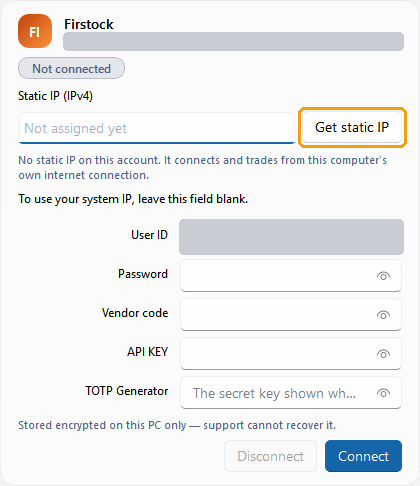
Open the desktop app and click Brokers in the left menu. Find the card for your account. If the Static IP box says Not assigned yet, click Get static IP next to it, then Get static IP again in the box that asks you to confirm.
If you see the message To use your system IP, leave this field blank, that is only for clients who trade without a static IP. With a subscription, get the static IP.
Copy the IP
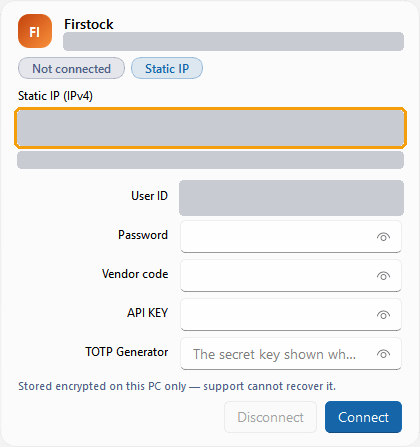
#The box now shows your static IP. If a window titled Whitelist your static IP opens, keep it open while you do the next steps, and click I have whitelisted it only after you have saved the IP at .
Click inside the Static IP box, select the whole address (Ctrl+A) and copy it (Ctrl+C). This broker needs no redirect URL.
- Your IP for is an IPv4 address. It looks like four numbers with dots — for example 151.242.10.20.
- Paste only the IP. Never add a port number, and never use your home Wi-Fi or mobile IP.
Step 2 — Create a new key
#Open the web platform in a new tab and log in with your login details.
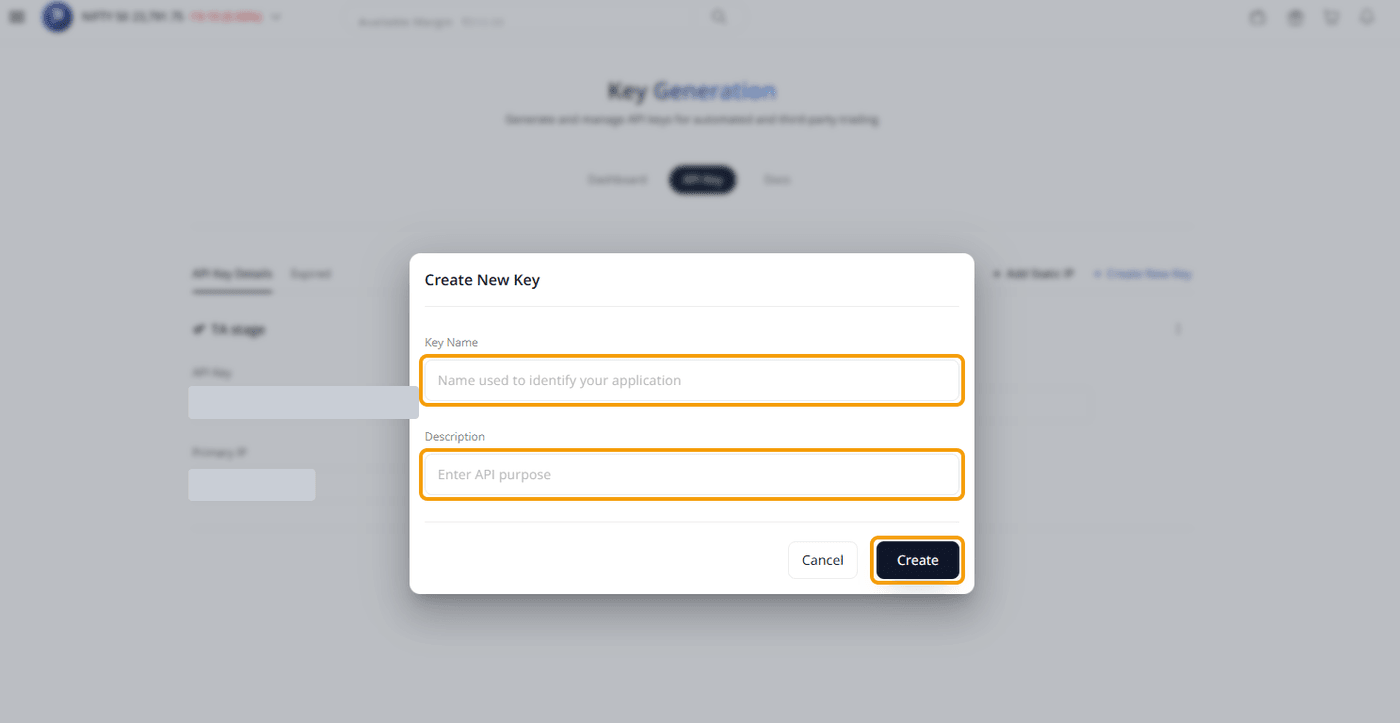
Open the menu on the left, go to Developer → API Key, and click + Create New Key.
Enter a Key Name (for example Trade Apps) and a short Description, then click Create.
Step 3 — Add your static IP
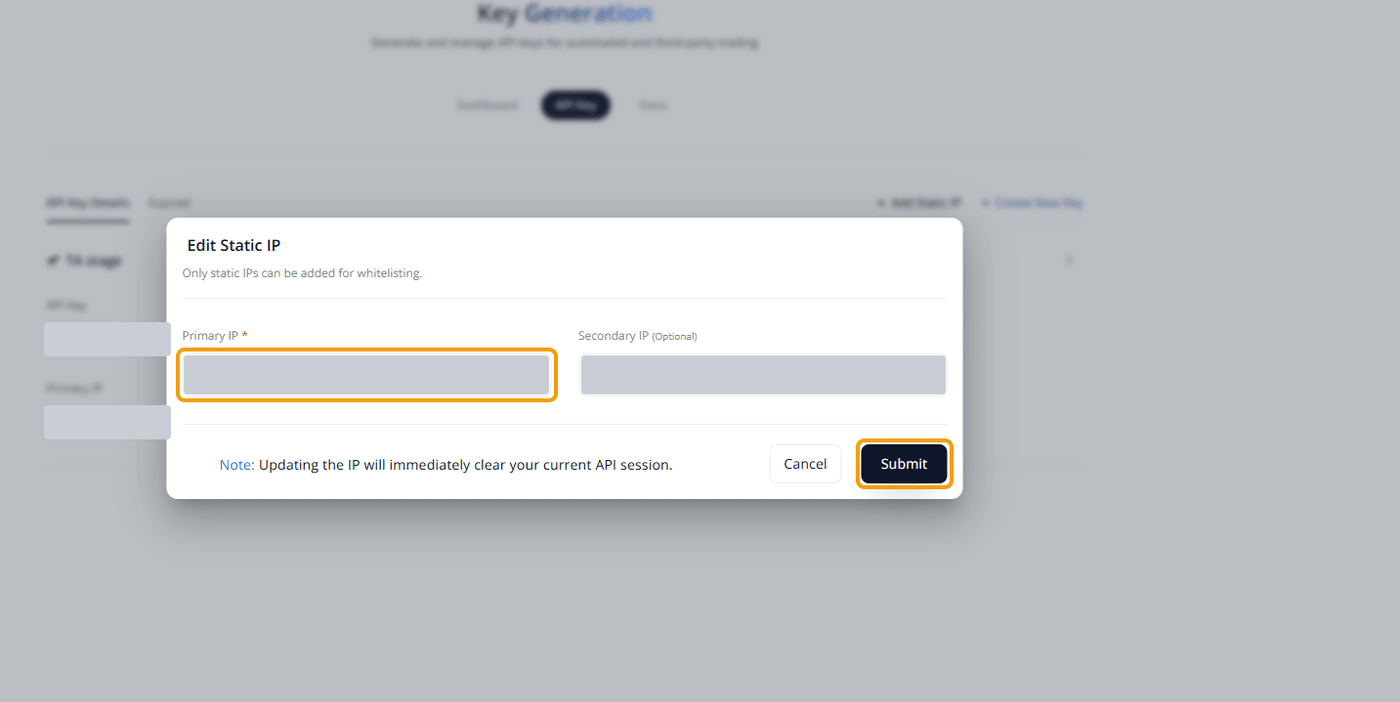
#On the same page, click + Add Static IP. Paste your Trade Apps IP in Primary IP (your IP is IPv4), leave Secondary IP empty, and click Submit.
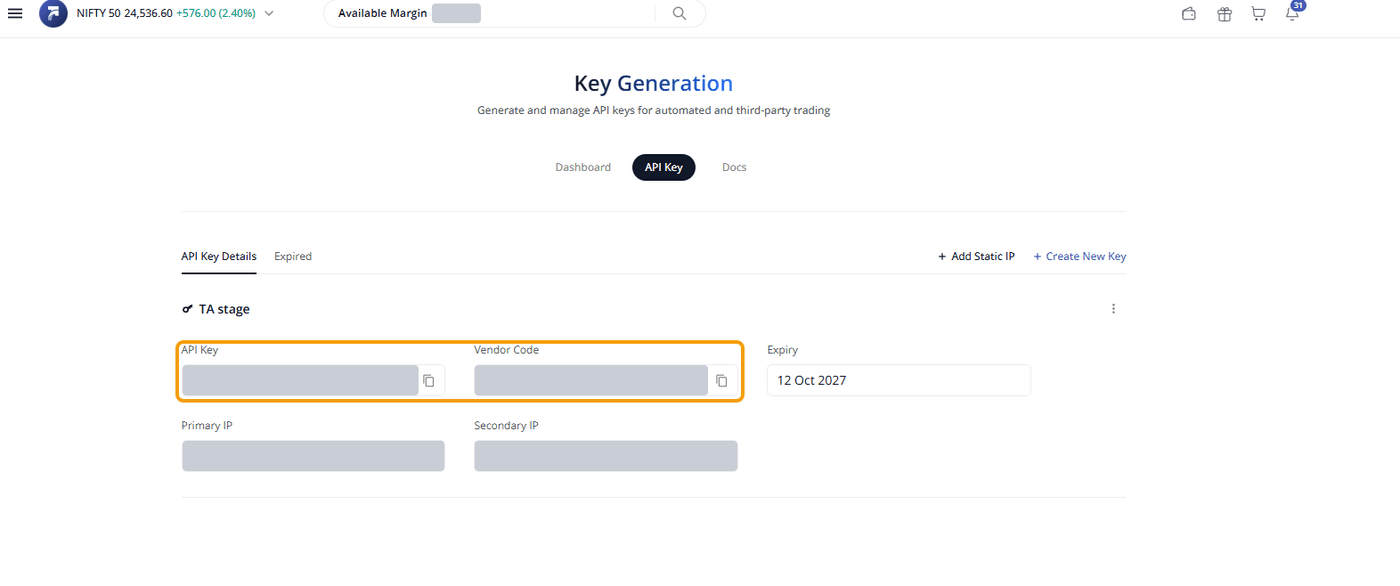
Step 4 — Copy the API Key and Vendor Code
#Your key is now listed under API Key Details with its API Key, Vendor Code, expiry date and IPs. Copy the API Key and the Vendor Code with the copy icons.
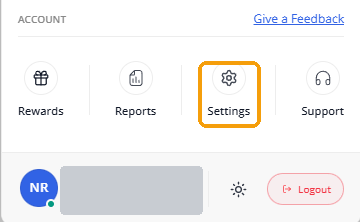
TOTP 1 — Open Settings
#The desktop logs in to your broker by itself each morning, so it needs your TOTP key: the long code of letters and digits behind the QR code your broker shows when you turn TOTP on. From it, the desktop makes the same 6-digit code your authenticator app shows.
In the web platform, open the menu on the left and click Settings at the bottom.
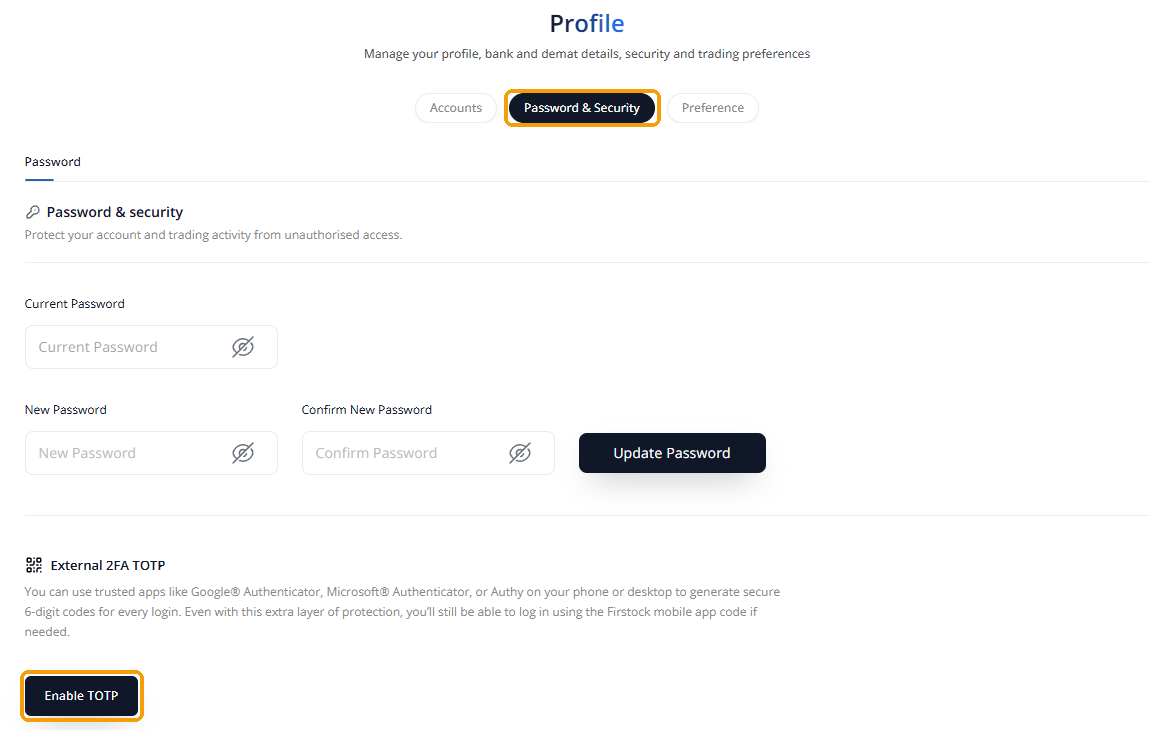
TOTP 2 — Enable TOTP
#On Profile, open the Password & Security tab. Under External 2FA TOTP, click Enable TOTP.
sends an OTP to your email. Type it and click Verify.
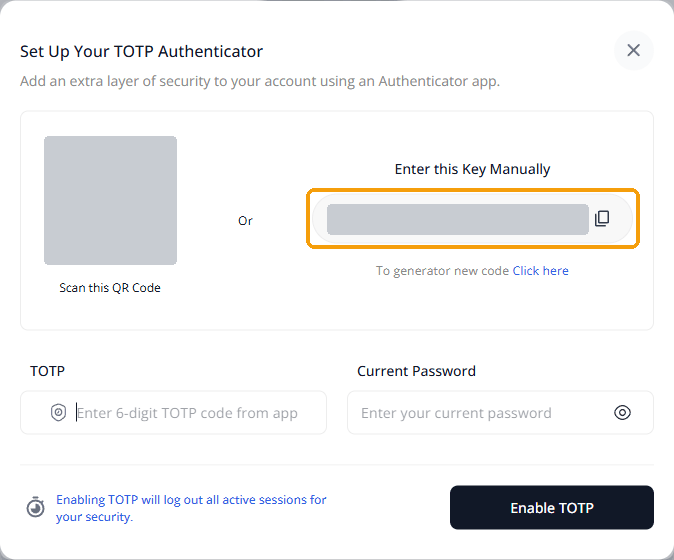
TOTP 3 — Copy the key
#shows a QR code and, next to it, Enter this Key Manually with the key and a copy icon. Copy the key.
Scan the QR code with your authenticator app, type its 6-digit code and your current password, and click Enable TOTP.
TOTP 4 — Log in again
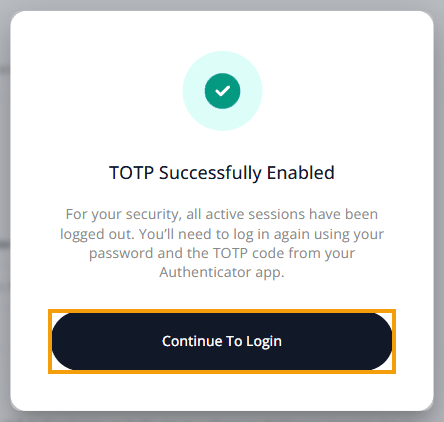
#shows TOTP Successfully Enabled and logs you out everywhere. Click Continue To Login and log in with your password and the TOTP code.
- Copy the key, not the 6-digit code. The code changes every 30 seconds; the key never changes.
- Also scan the QR code with an authenticator app on your phone (Google Authenticator, Microsoft Authenticator or Authy). You need its codes for the broker’s own website and app.
- If TOTP was turned on long ago and you did not save the key, reset TOTP to see a new key, and scan the new QR code on your phone too — the old codes stop working.
- The key is as private as your password. Never send it to anyone, including us.
Fill in the card in the desktop app
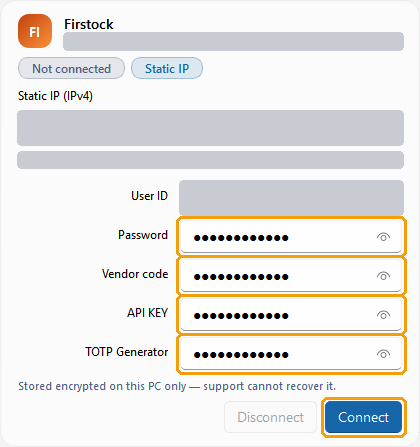
#Go back to the desktop app, Brokers page, your card. Fill in:
- Password — your login password.
- Vendor code — the Vendor Code from .
- API KEY — the API Key from .
- TOTP Generator — the TOTP key you copied.
- Paste each value exactly, with no space before or after. Leave User ID as it is — it comes from your Trade Apps account.
Connect and check it worked
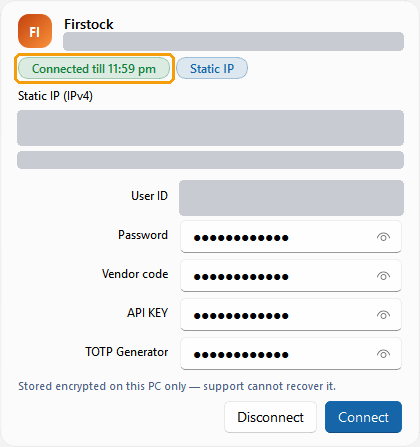
#Click Connect. It saves what you typed and logs in. The desktop logs in with your password and TOTP key; no broker page opens.
When it worked, the grey Not connected label turns green and says Connected till 11:59 pm. Trade Disc and Trade Scalper both use this connection.
What you typed is saved, encrypted, on this computer only. Each trading day, open the Brokers page and press Connect once before the market opens. You do not repeat the setup. On a second computer you type the details once more.
If it does not work
#If Connect fails, the reason is written in red on the card, under the labels. Check these in order; most failures are one of the first four.
- Wrong IP, or IP saved in the wrong box. In the web platform, the IP must be exactly the one the desktop card shows, in the IPv4 box. After changing it, wait 2 minutes, then press Connect again.
- TOTP key wrong. The TOTP box needs the long key from the TOTP setup, not today’s 6-digit code. If in doubt, turn TOTP off and on at the broker, copy the new key, and paste it again.
- Password or PIN changed at the broker. Type the new one in the card and press Connect.
- Key and secret swapped, or a space copied with them. Paste each one again into the right box.
- Vendor code and API key swapped. Check each box against the API Key Details page.
- MCX. does not offer MCX through its API, so MCX contracts cannot be traded through a account.
- Still stuck? WhatsApp 9398840360 with a screenshot of the card and the time. Never send your password, PIN, OTP, TOTP key or API secret — we never need them.