Desktop Apps
Desktop: Forward Testing, books and logs
What Trade Scalper and Trade Disc share — practising without money, whose trades you see, stops parked at the broker, the Orders, Positions and Analytics pages, and the day's log.
Forward Testing and Live
#Every order goes to one of two books. Forward Testing is practice: the order never reaches your broker, and it fills at the live market price as if it had. Live is real: the order goes to your broker and spends real money.
The switch is at the top of each tool, and a chip beside it says which book a click trades — Forward Testing in amber, LIVE in red. Read it before every order. The two books never mix: a Forward Testing position is not in your Live P&L, and a Live loss does not count against a Forward Testing limit.
An example. In Forward Testing you buy one lot of the 24,250 CE while it trades at Rs 120. The book shows a BUY of 65 at Rs 120.00, your broker sees nothing, and no margin is used. Ten minutes later the CE is at Rs 132 and you exit: the book records a profit of Rs 780 ((132 − 120) × 65), and it counts in Forward Testing's figures only.
A LIMIT order in Forward Testing waits, exactly as it would at the broker, and fills when the live price reaches it. What Forward Testing cannot show you is the broker itself: a margin refusal, a price band, or a slow fill in a fast market only happen in Live.
Only your own accounts
#The app keeps its trade records on this computer, and more than one person may sign in to the same computer. Every screen therefore shows only the trades of the broker accounts on your login.
An example. Your login has and . A colleague signs in on the same PC with a account and opens a NATURALGAS position. When you sign back in you see none of it: their position is not in your Live Positions, their P&L is not in your Total P&L or Analytics, and your Exit All cannot close it. When they sign in again, everything of theirs is there.
An account that is taken off your login on the website disappears from these screens with it. Its trades are not deleted; they come back if the account is assigned to you again.
Stops and targets parked at the broker
#Each tool's settings carry Order Placing in Terminal, with four choices: SL, Target, Both and None. It decides where your stop loss and target live.
What you park is sent to your broker as a real order as soon as the position opens. It is the broker's to fire, so it works with this app closed or the computer switched off. What you do not park is watched by the app, and only while it is running.
An example. You buy one lot at Rs 100 with a stop at Rs 90 and a target at Rs 120, and choose SL. A real stop order at Rs 90 now sits at your broker; the Rs 120 target is watched by the app. If your computer loses power with the price at Rs 104, the stop at Rs 90 can still fire at the broker. The target cannot, because only this app was watching it — if the price reaches Rs 120 while the computer is off, nothing is sold.
Choose Both if you may have to leave the desk with a position open. None keeps everything inside the app: quick to change, and gone the moment the app is.
The Orders and Positions pages
#The side menu of the main window has Orders and Positions. They show what both tools did today, in one place: every order with its time, tool, book, client ID, symbol, side, quantity, price, status and the broker's own remark, and every position with its entry, exit and realized P&L.
Two filters narrow them: the tool (All tools, Trade Disc or Trade Scalper) and the book (Live + Forward Testing, Live only or Forward Testing only). They refresh every few seconds.
They are for reading, not for acting. To exit or change a position, go to the tool that opened it — these pages hold no price feed, so a button here would be acting on a stale price.
Where they help: an order was refused and you want the exact words. Open Orders, pick Live only, and the Remarks column carries the broker's message, for example a margin shortfall, against the order it refused.
Analytics
#Analytics turns your closed trades into the numbers a trader reviews at the end of the week: P&L, win rate, average win and average loss, profit factor, max drawdown, the equity curve, daily P&L, and the same figures By symbol and By broker, with the list of trades underneath.
It is in each tool — Trade Disc's Analytics tab, the pie-chart icon in Trade Scalper — and in the main window's side menu, where it covers both tools together. Everything is worked out on this computer from your own records; nothing is sent anywhere.
An example. Over a week you close 20 trades: 12 winners making Rs 18,000 between them and 8 losers costing Rs 10,000. Analytics shows a P&L of Rs 8,000, a win rate of 60 percent, an average win of Rs 1,500 and an average loss of Rs 1,250. By symbol may then show that all of the loss came from SENSEX — which is the kind of thing this page is for.
The day-by-day figures are kept for good. The list of individual trades goes back 90 days; older trades are already counted in the daily figures, so the totals do not change when they drop off the list.
Activity Logs
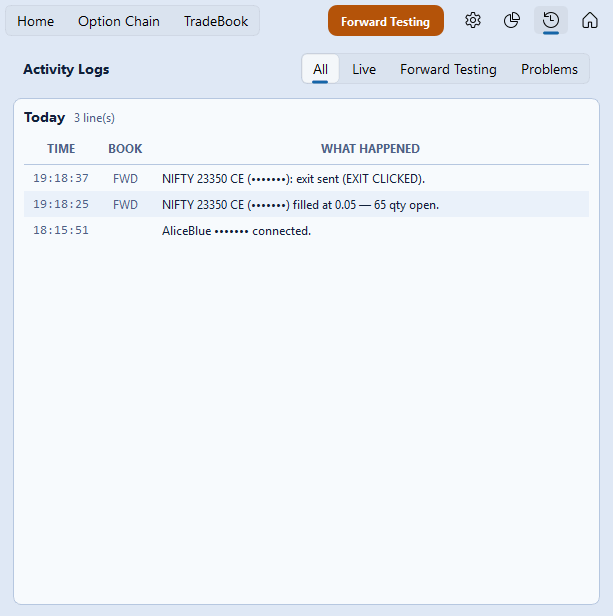
#Both tools keep a page of what they did today: every order and fill, every stop or target that hit, every trailing move, square-off and Kill Switch, brokers connecting and dropping, and the settings you changed yourself — each with the time against it. In Trade Scalper it is the clock icon beside the tabs; in Trade Disc it is the Logs tab.
The buttons at the top narrow it: All shows every line, Live and Forward Testing show that book alone, and Problems shows only what went wrong. It is today only; earlier days are not kept on this computer.
When something looks wrong, this page is the first place to look, and the log files whose folder is shown on the Settings page are the second.