Desktop: Trade Scalper
Trade Scalper: placing orders
Scalping Mode and Normal Mode, the order types with examples, choosing strikes, and the keyboard.
Scalping Mode and Normal Mode
#Scalping Mode is one click at market. Tick the box and the CE and PE strips come alive: each names the strike it has armed and its premium — CE 23350 (120.00) — with B to buy, S to sell and E to exit that side, and a strike box of its own under each. The small arrow beside the tick opens the same eight buttons in a little window you can keep on top of anything else.
Normal Mode is the full order form: order type and price, then Enter, Exit All and Exit, then Flip CE/PE, Flip Buy/Sell and Advanced. A scalp entry never picks up Normal Mode's order type or price — they are separate paths on purpose. While Scalping Mode is ticked, Normal Mode's buttons are greyed out, and the other way round.
Order types are MARKET, LIMIT, Buy Above / Sell Below (a stop order held at the broker) and UNDERLYING, where the order waits until the index itself crosses a level you type, then goes at market. One of each: the option is at Rs 100 and you only want it if it is strong, so Buy Above Rs 105 waits at the broker and fires at Rs 105. Or NIFTY is at 24,180 and you only want the trade above 24,250 — choose UNDERLYING, type 24,250, and the order waits for the index, not for the option.
Strike Prices, or ATM/OTM/ITM
#In Settings, Strike View - Strike Selection decides what the strike boxes list. With Strike Prices they list the actual strikes, and until you pick one they follow the money, so a fresh box is always on the at-the-money strike.
With ATM/OTM/ITM they list rungs instead — from 50 OTM through ATM to 10 ITM — and the app works out the strike for you from the live index. The Strike title on Home then shows the strike it resolved to and its premium, Strike 23350 (120.00), so you always know what is armed. Change the market and the rung stays; the strike under it moves.
Whichever mode you use, a strike list opens with your current choice in the middle, the way the Option Chain opens on the money, so the rungs either side are one glance away rather than a scroll.
The keyboard
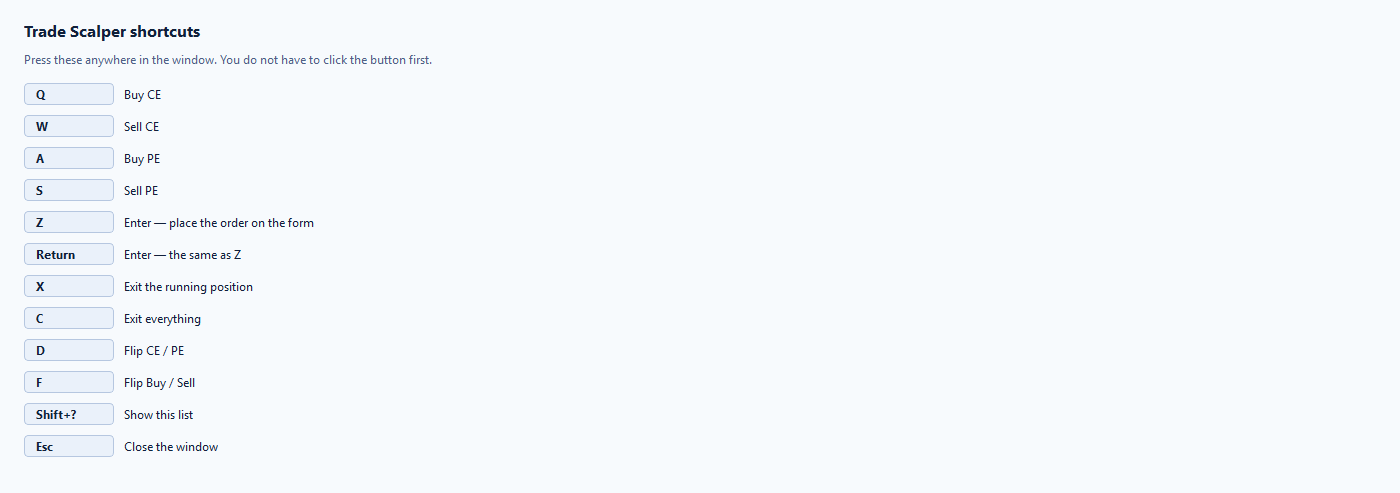
#The fastest part of the tool, and the reason people use it. Press these anywhere in the window; you do not have to click the button first.
- Q buy CE · W sell CE · A buy PE · S sell PE
- Z or Enter places the order on the form
- X exits the running position · C exits everything
- D flips CE to PE · F flips Buy to Sell
- Shift + ? shows this list · Esc closes the window
- Up and Down step the box you are in. On a strike box — either Scalping Mode strike or the Normal Mode one — they move one listed strike and arm it, as if you had picked it. On Recent Trade's SL or TR they press that box's own + or −, so the new level is sent to the running leg. A level parked at the broker through Order Placing in Terminal does not move.