Desktop: Trade Scalper
Trade Scalper Desktop
The fast single-leg ticket on your own machine — the screen, a first trade step by step, what it can trade and what it cannot do.
What Trade Scalper Desktop is?
#One screen for going in and out of a single option leg as fast as it can be done. Nothing is automated: you decide every entry and every exit.
It is the same tool as TradeScalper on the web, on your own machine, with a keyboard map instead of a mouse. The trading rules underneath are the same ones, so a stop loss behaves here exactly as it does there.
Who it suits, and who it does not?
#It suits someone taking many trades in a session who needs an entry to cost one keystroke, and who is watching the screen while a position is open.
It does not suit somebody who wants a position adjusted rather than closed — that is Trade Disc — or who wants trades placed while they are away, which is what TradeBots, TradeBridge and TradeBuilder are for.
The screen
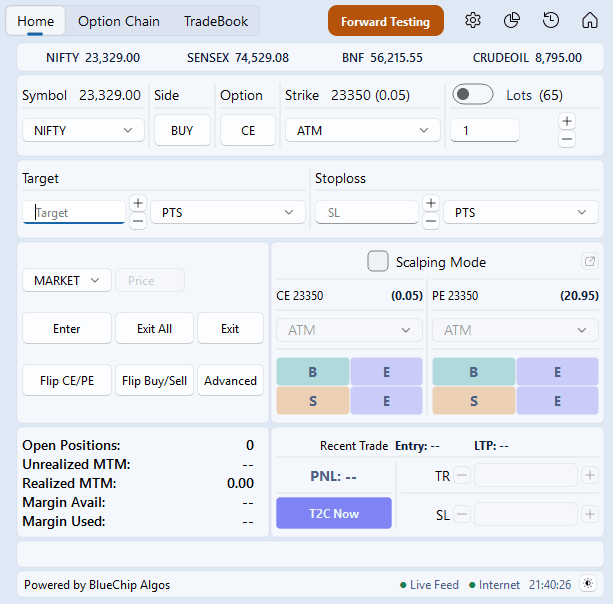
#Three tabs across the top: Home, Option Chain and TradeBook. TradeBook opens as its own window, so the ticket never moves to make room for it. Beside the tabs is the chip that says which book a click trades — Forward Testing or LIVE — and four icons: the gear opens Settings, the pie chart opens Analytics in its own window, the clock opens Activity Logs, and the house brings the main Trade Apps window back to the front.
Home reads top to bottom. The four index prices — NIFTY, SENSEX, BANKNIFTY and CRUDEOIL — then the ticket: Symbol with its live price in the title, Side, Option, Strike with the price of the strike you have armed, and Lots, which becomes Capital when you flip the switch beside it. Under that, Target and Stoploss with their units; then Normal Mode on the left and Scalping Mode on the right; then Open Positions and Recent Trade; the order status line; and the footer with the Live Feed and Internet dots and the clock.
The strike you choose is resolved and subscribed the moment you choose it, so pressing a buy key has nothing left to look up — that is what makes the key press fast.
Your first trade, step by step
#Do this once in Forward Testing before you trade real money. It takes two minutes and nothing reaches your broker.
Check that the chip beside the tabs says Forward Testing. On Home choose NIFTY, Option CE, and the strike at the money — say 24,250, priced at Rs 120. Set Lots to 1, and Target and Stoploss to 10 each, in points.
Tick Scalping Mode and press B on the CE strip, or the Q key. The status line confirms the order, Open Positions shows 1, and Recent Trade shows the leg: entry Rs 120, with the target at Rs 130 and the stop at Rs 110.
Now watch it work. If the CE reaches Rs 130 the target sells it and the trade makes Rs 650 (10 points × 65). If it falls to Rs 110 the stop sells it for a loss of Rs 650. Or press E, or the X key, to exit yourself at the current price.
Open the TradeBook and the trade is there with its entry, exit and P&L. When everything behaves the way you expect, switch to Live.
What you can trade?
#Index options, index futures, equity, MCX options and MCX futures. Trade Disc is an options terminal; this one is not.
Change the segment in Settings. On a futures or cash segment the strike and CE/PE controls switch off, because there is nothing to choose, and the Symbol title reads Exchange with the scrip's price beside it.
Settings also lets you point an index at its future rather than its spot — the current month, the next or the far one — for the price that the ticket, the Underlying order type and the underlying exit all read. The Symbol title then shows FUT, FUT2 or FUT3 before the price, so you can see it took.
What it cannot do?
#It cannot place a trade while you are away. A level the APP is watching only fires while the app is running — if the machine sleeps or shuts down, the position stays open at your broker. A level parked at the broker through Order Placing in Terminal does not depend on this app at all.
It cannot promise a fill at your stop price. A stop is an order sent when the level is touched; in a fast move the fill can be worse.
It does not choose strikes, levels or sizes for you. Every one of those is your decision.
If something is not right
#In the order worth checking.
- Buttons do nothing. The broker is not connected — check the Brokers page. In Forward Testing, check that Scalping Mode is not ticked when you are using Normal Mode: each greys the other out.
- "Select a strike first." Nothing is armed on that side yet. Choose a strike in the dropdown.
- "Fresh live market price unavailable." That contract has not ticked yet. Give it a moment or pick a strike that is trading.
- Margin Avail and Margin Used show a dash. You are in Forward Testing. Margins are read from the broker in LIVE only.
- A key does nothing. The window is not in front. Click it once, then the key.