Desktop Apps
Trade Apps Desktop: Getting Started
One Windows application, one login, and the two tools inside it — what you need before you start, and what the desktop does that the web does not.
What Trade Apps Desktop is?
#Trade Apps Desktop is one Windows application that you install on your computer. Inside it are two trading tools — Trade Scalper and Trade Disc — and you reach both with a single login.
It is the same account you use on the website. You sign in once on the desktop and it stays signed in; you do not type the password every morning.
The important difference from the web tools: your orders leave from your own computer. The web tools run on our server, so your machine can be switched off and they keep working. The desktop runs on your desk, so it cannot.
Who it suits, and who it does not?
#It suits a trader who sits at one computer through the session and wants the fastest possible path from a decision to an order — a keyboard key rather than a page load.
It does not suit somebody who trades from a phone, moves between machines during the day, or wants positions managed while they are away from the desk. For any of those, the web tools are the right answer, and the same two products exist there.
What you need before you start?
#Four things.
- A Windows computer that stays on and online for as long as you have a position open.
- An active subscription for the tool you want. Trade Scalper Desktop and Trade Disc Desktop are bought separately, from each other and from the web products.
- A broker account with , , , or (), assigned to you on the website. and are on the desktop only.
- The broker API details for that account. If we issue a static IP for the account, it is whitelisted with the broker; an account without one connects and trades from your computer's own internet connection.
Installing it
#Download the setup file and run it. It installs for you alone, so it does not ask for an administrator password.
Your antivirus may hold the file back the first time. That is common for any new application that is not yet widely installed; allow it and it will start normally.
When a new version is released the app tells you, downloads it and installs it for you. You do not have to come back to the website for updates.
Signing in
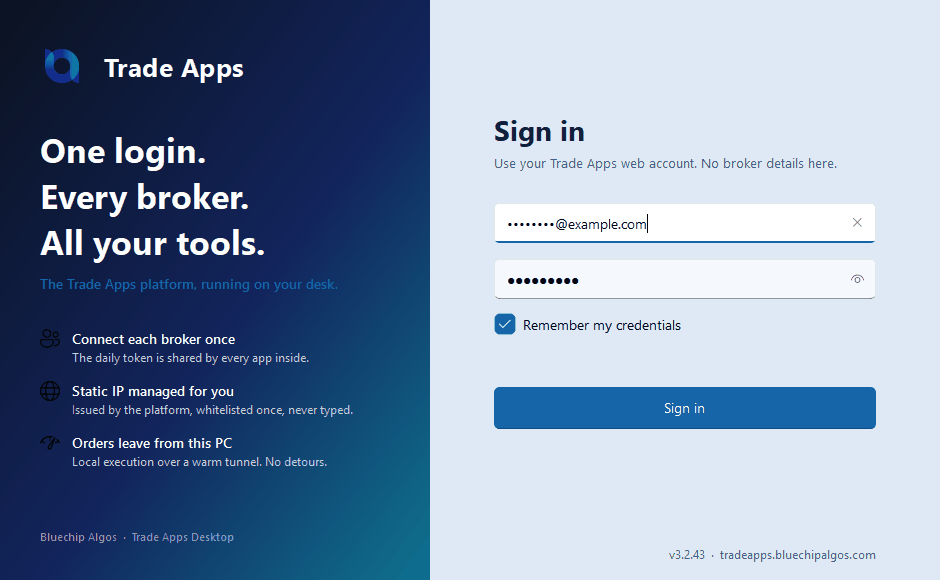
#Enter the same email and password you use on the website. There is no OTP or 2FA step on the desktop.
Remember my credentials is on by default. With it on, your email and password come back filled in the next time you open the app, with the password shown as dots — so you press Sign in and go. Turn it off on a shared computer and it forgets both immediately, not at some later sign-in.
Your sign-in lasts about a month of not using it before it asks again, and when it does the screen is already filled in. You click Sign in; you do not retype anything. Leaving the box ticked means it stays that way indefinitely, because unticking it is the only thing that forgets.
The email and password are kept on that computer only, encrypted and locked to your Windows user, in the same place as your broker API details. They are never sent to us, and the file cannot be read on another machine or by another person signing in to the same one.
Sign out is at the foot of the side menu. It returns you to the sign-in window.
When we publish an announcement it opens after you sign in. Close it and it stays closed for the rest of the day; it comes back once the next day, for as long as the announcement is current.
The two tools inside
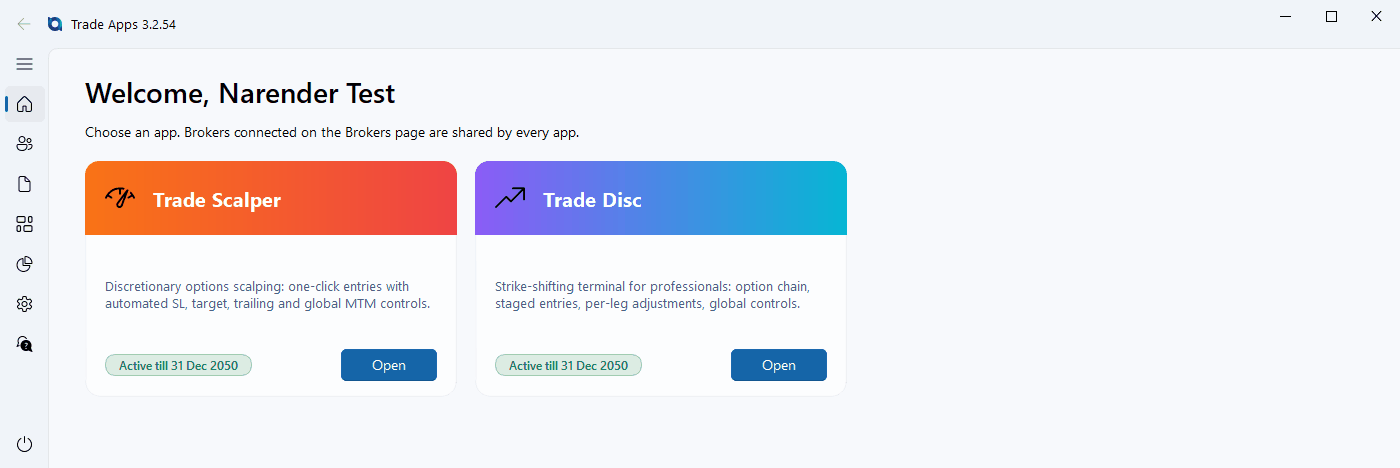
#After signing in you land on the Home screen with a tile for each tool. A tile only opens if that product is active on your account.
Trade Scalper is the fast ticket: one key or one click to go in and out of a single leg. Trade Disc is for changing a position that is already open — moving a leg to another strike, adding or removing lots, putting a stop and a target on it.
Both can be open at the same time, and they share one broker connection, one order history and one set of day-wide risk controls. A position you open in one is visible in the other.
Each tool opens in its own window. Along the top of that window a coloured chip says which book a click will trade: Forward Testing in amber, LIVE in red. Read it before every order.
Keeping it running
#The computer needs continuous power and internet for as long as a position is open. If the machine sleeps, loses its connection or is shut down, any stop loss or target the app is watching will not fire, and the position stays open at your broker.
There is one exception, and it is worth setting up. In each tool's settings, Order Placing in Terminal can park your stop, your target, or both as real orders at the broker. What is parked there is the broker's to fire and does not need this app running. What is not parked is watched here, and only while the app is open. An example: you buy at Rs 100 and put the stop at Rs 90. Park the stop and a real Rs 90 order sits at the broker, so it still fires with your computer switched off. Leave it unparked and that Rs 90 lives only inside this app.
The footer of each tool carries two dots. Internet says whether this computer is online. Live Feed is green while prices have arrived in the last minute, amber while the feed is still connecting, and red when nothing has arrived for a minute. Red during market hours means the broker connection needs attention — open Brokers and press Connect.
If you leave the app open overnight it asks you, the next morning, to close and reopen it. Broker tokens expire at midnight and a fresh start is the reliable way to pick up the new day. It asks rather than doing it behind your back.
What a new day clears?
#The first time a tool opens on a new calendar day, yesterday's day-wide settings are cleared. That is the global MTM profit and loss pair and its X and Y trail, the lock-and-trail ladder, and the underlying high and low. A threshold you chose for yesterday's market is not a setting for today's, so it does not carry over.
The ticket's own defaults go with it: lots, target, stop loss, the trailing pair and trail-to-cost. Two things are kept on purpose: the auto-exit time, because it is a time of day and not a level, and the SL-L difference in Advanced, because it describes how your broker prices a stop-limit order and not the market.
It is the calendar day that matters, not a restart. Set your caps at 9:15, close the app, open it again at 11:00 the same day, and everything is still there.
A position still in the book on a contract that has already expired is settled automatically the next time the tool opens: closed at its entry price and marked EXPIRED. Nothing is sent to the broker, because there is no market for it any more.
If something is not right
#The order these are worth checking in.
- A tile will not open. That product is not active on your account. Home shows which ones are.
- Prices are not moving, or the Live Feed dot is red. The broker is not connected. Open Brokers and press Connect; the token only lasts until midnight.
- Prices stopped after you used another computer. A broker allows one price connection per account, so the same account open on a second computer takes it — answers 429 Connection Limit Exceeded, simply hangs up. Press Disconnect on the computer you are leaving (or close the app there), then Connect on the one you are using.
- The broker refuses to connect. Almost always the static IP is not whitelisted yet, or the API key on the card was mistyped. The desktop uses the same API details as the web — see Brokers and static IP.
- A position from a past expiry is still showing. It is settled the next time the tool opens, at its entry price, marked EXPIRED. Nothing goes to the broker.
- The app hangs. Send us the log files. The Settings page shows the folder they are in.