Desktop Apps
Desktop: Brokers and static IP
Entering your broker API details on the desktop, why they are not the web ones, and where they are kept.
Connecting a broker on the desktop
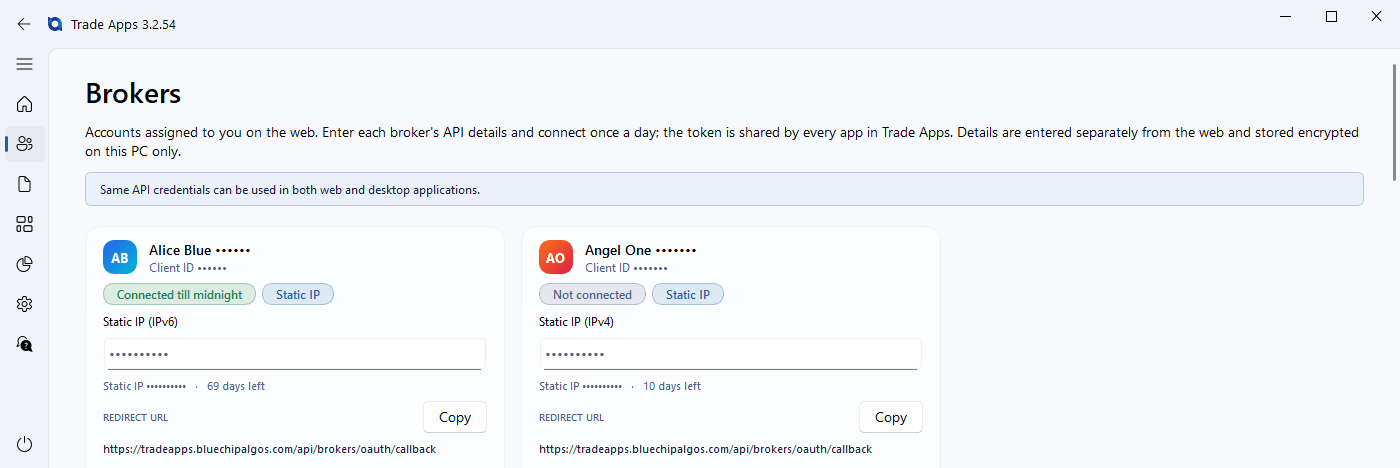
#The Brokers page lists the broker accounts assigned to you on the website. You enter each account's API details once on this computer, and connect once a day.
The connection is shared. Connect a broker and both Trade Scalper and Trade Disc use it — you do not connect twice.
The same API details as the web
#The desktop uses the same broker API key and secret as the web. You have one API app per broker client ID, with one redirect URL, and it serves the web and the desktop alike — there is nothing new to create at the broker.
What differs is where they are kept. The desktop does not download them from the website: you type them in once on each computer you use, and that computer keeps them — see Where the details are kept.
Where the redirect URL is?
#You need it once, when you create the API app in your broker's developer portal. The desktop app shows it for you: open Brokers, and the redirect URL is listed against each broker with a Copy button — , , and each show theirs. For it is the Redirect URL of your Kite Connect app.
shows none. Its login comes back to 's own page, so there is nothing for you to register.
It is the same address the web uses. If your API app was already set up for the web, it already has it and there is nothing to change. If you are creating the app now, copy the URL for that broker and paste it into the broker's developer portal as the redirect URL.
Where the details are kept?
#The API key, secret and TOTP you type here are encrypted and stored on this computer only. They are never uploaded to us, and they are locked to your Windows user account — another person signing in to the same PC cannot read them.
That has one consequence worth knowing: on a second computer you enter them again. There is nothing to copy across, and a copied file would not open.
Installing a new version does not touch any of this. Your details, and your sign-in, survive the update.
The static IP
#Brokers only accept API orders from an address they know. We issue one for your account and it is shown on the broker card with the number of days left on it.
You whitelist it once with the broker. One static IP covers that broker account everywhere — the web tools, the desktop tools and copy trading. A second product does not need a second IP.
Two accounts at the same broker do need two IPs, and needs its own.
We do not issue a static IP for or . Those accounts, and any account the platform has not issued an address for, show No static IP on this account on the card, and connect and trade from this computer's own internet connection.
The app reads the IP from the platform every half hour and again immediately before every broker login, so what the card shows is what the platform holds. If the platform has changed your IP since you last whitelisted it, the app tells you so, shows the steps, and does not log in until you have done them — a login from an address the broker does not know is simply refused.
Connecting each day
#Broker tokens expire at midnight, every day, for every broker. Open Brokers, press Connect, and the card shows Connected till midnight.
Press it once. While the login runs the card says Connecting… and Connect is greyed out; a second press would start a second login, and some brokers answer two at once by refusing one of them.
Disconnect ends the session on this computer and closes its price connection too. Use it before you move to another computer: a broker allows one price connection per account, and the one left open on the first machine keeps the second one without prices.
Do this before the session rather than during it. A connect takes a few seconds, and those are seconds you do not want to spend with a position open.
If the connection fails
#In the order worth checking.
- "Broker session is not ready" — the details are saved but the connect has not run today, or it failed. Press Connect and read the message it gives.
- The broker rejects the login. The API key or secret on the card does not match the API app made for that client ID. Copy them again from the broker's developer portal and press Connect once.
- The broker rejects the IP. The static IP is not whitelisted, or it was whitelisted for a different account at that broker.
- The app says the static IP has changed. Whitelist the new one with the broker exactly as the steps on screen say, then press Connect again. Until then the login is held back on purpose.
- The static IP shows days remaining and they are running out. It renews from the website; the app only shows what the platform tells it.
- "The TOTP Generator box holds a 6-digit number." The box wants the TOTP key — the long code of letters and digits the broker showed when you turned TOTP on — not the 6-digit code from the authenticator app. A key with characters no TOTP key can contain is refused the same way, before anything is sent to the broker, so your password was not tried.
- refuses the login. The card gives Alice's own words and the step it stopped at, for example refused the login at the TOTP: "Invalid OTP". For a TOTP refusal, register TOTP again in , paste the NEW key on the card and press Connect once.
- says "Invalid API Key". The API key on the card is not the one from the app made for that client ID. Copy it again from that app and press Connect.
- The broker did not answer. A gateway error or a timeout is the broker's side: your TOTP and whitelisting are not the problem. Press Connect again.