API Integration
API Integration
Connect to Trade Apps step by step: static IP, the developer portal, API key and secret, Connect.
What you need before you start?
#This page connects your account to Trade Apps, from start to finish. It takes about 10 minutes the first time. After that, you only press Connect once each trading day.
You will move between two websites: Trade Apps (our platform) and developer portal. Keep both open in two browser tabs.
- Your trading account, active, and your login details for it.
- Your Trade Apps login, with this broker account already showing under Settings → Brokers Connected. If it is not there, WhatsApp support at 9398840360 — accounts are added by our team.
- A laptop or desktop is easier than a phone for the broker portal.
Step 1 — Get your static IP in Trade Apps
#Brokers accept API orders only from an address you have approved, called a static IP. Trade Apps gives you one with your subscription. Free-trial accounts get none, because Forward Testing does not need it.
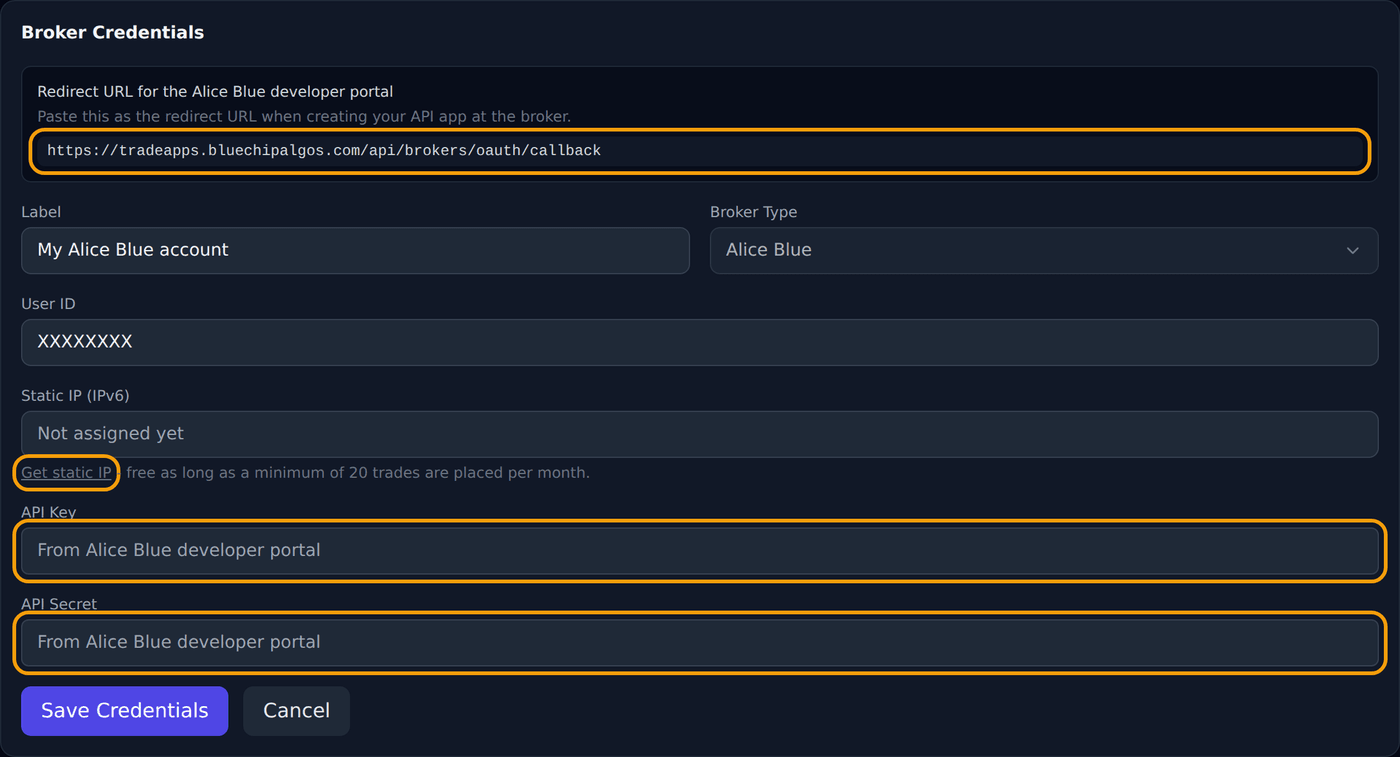
Open Settings. Under Brokers Connected, find your account and click the small pencil (Edit) button on its right.
In the form that opens, the Static IP box says Not assigned yet. Click the Get static IP link under it. A box appears with Your static IP (IPv6) and a Copy IP button. Under it is the Redirect URL with a Copy redirect URL button. You need both in the next step.
Copy the IP now (and the redirect URL, if shown) and keep this tab open. If the form already shows a static IP, there is no button — copy the IP from the Static IP box, and the redirect URL from the Redirect URL box in the same form.
- Your IP for is an IPv6 address. It is long, with colons — for example 2402:1f00:8300:… Copy the whole thing.
- Paste only the IP. Never add a port number, and never use your home Wi-Fi or mobile IP.
Step 2 — Create the app
#Open the developer portal in a new tab and log in with your login details, choosing Individual trader.
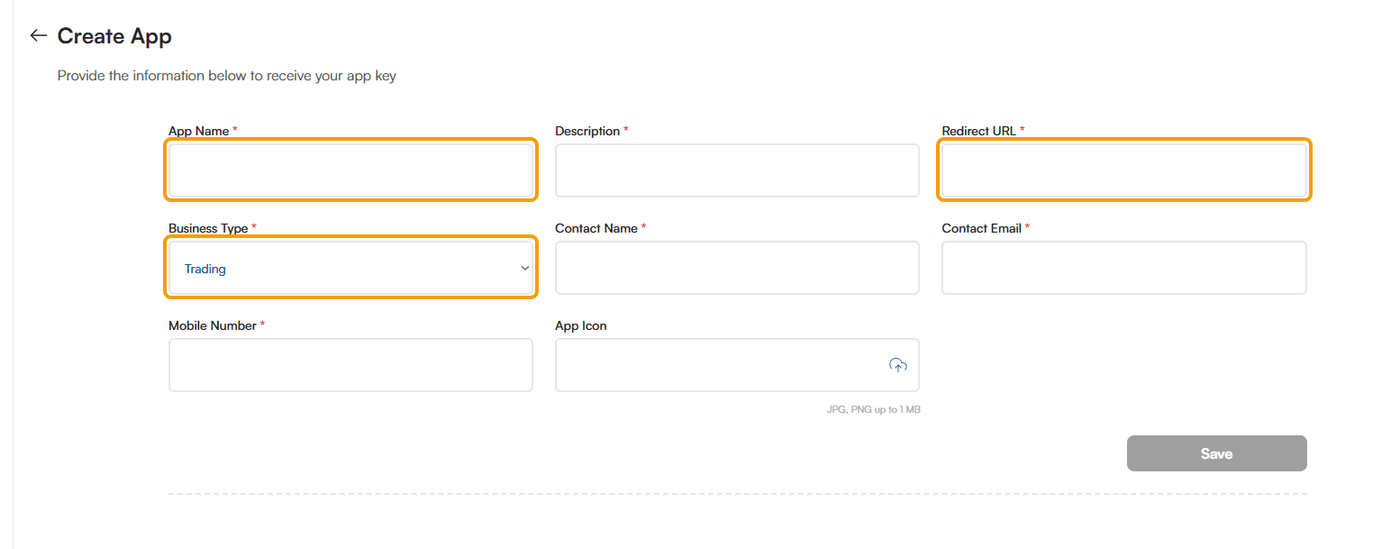
Go to Create App. Fill every box marked with a red star:
- App Name — any name you like, for example Trade Apps.
- Description — a few words, for example Algo trading through Trade Apps.
- Redirect URL — paste the redirect URL you copied from Trade Apps. It must match exactly.
- Business Type — choose Trading.
- Contact Name, Contact Email, Mobile Number — your own details.
- App Icon — not needed.
Step 3 — Save and add your static IP
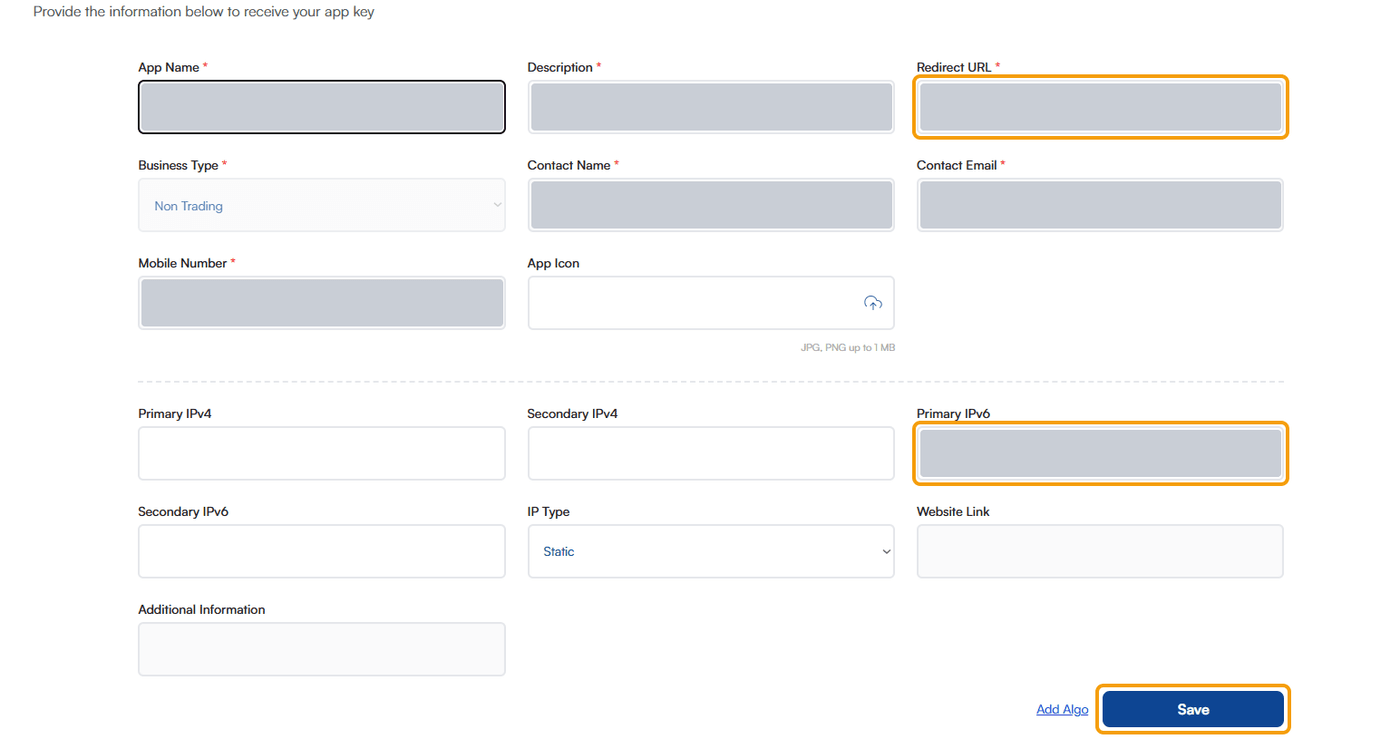
#Click Save. More boxes open below: Primary IPv4, Secondary IPv4, Primary IPv6, Secondary IPv6 and IP Type.
Your Trade Apps IP is IPv6, so paste it in Primary IPv6. Leave both IPv4 boxes empty. Keep IP Type on Static. Then click Submit.
Step 4 — Copy the App Key and App Secret Key
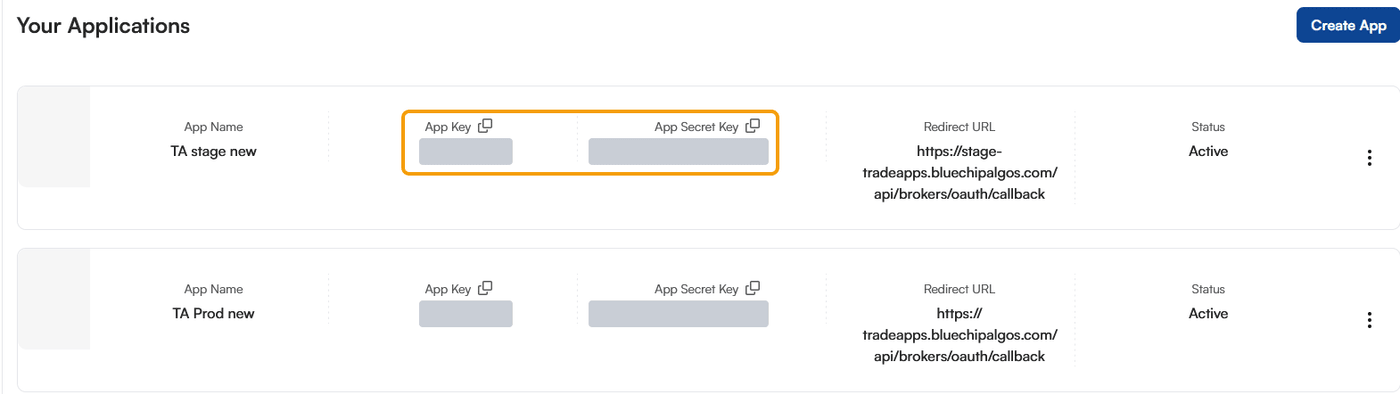
#Your app now appears under Your Applications. Copy its App Key and its App Secret Key with the copy icons next to them. These are your API key and API secret.
Paste the details in Trade Apps
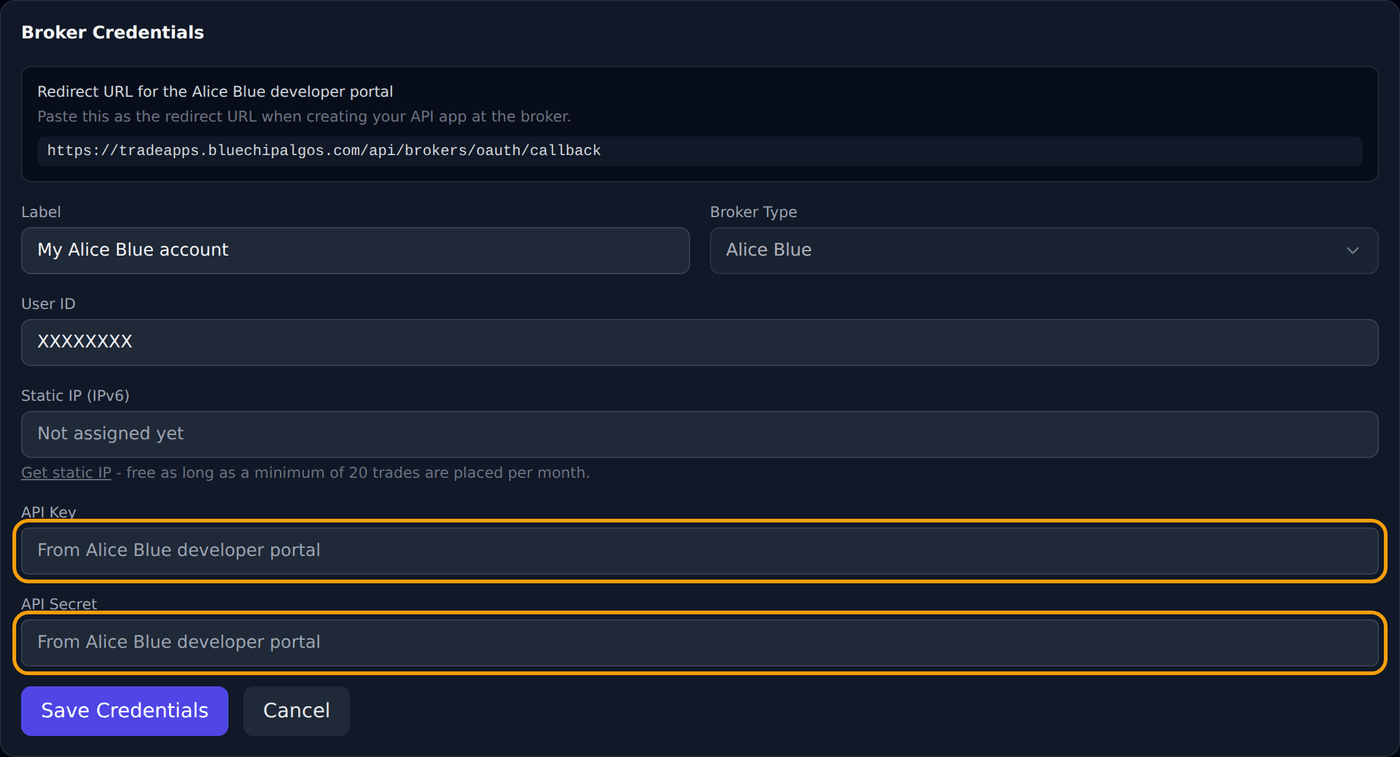
#Go back to the Trade Apps tab. Open Settings, click the pencil on your account again, and fill in:
- User ID — your client ID.
- API Key — the App Key from the portal.
- API Secret — the App Secret Key from the portal.
- Click Save Credentials.
Connect and check it worked
#Under Brokers Connected, click Connect. The login page opens in a new tab. Log in there; you come back to Trade Apps by yourself.
When it worked, your account in Brokers Connected shows a green dot and the words Session active (broker validated). You are ready to trade.
Broker sessions end every night. Each trading day, open Settings and press Connect once before the market opens. You do not repeat the setup.

If it does not work
#Check these in order. Most failures are one of the first three.
- Wrong IP or IP saved in the wrong box. In the developer portal, the IP must be exactly the one Trade Apps shows, in the IPv6 box. After changing it, wait 2 minutes, then press Connect again.
- Redirect URL has a typo or extra space. Copy it again with the Copy redirect URL button and paste it fresh.
- Key and secret swapped, or a space copied with them. Paste each one again into the right box.
- IP pasted in an IPv4 box. has four IP boxes. Your IP only works in Primary IPv6 (or Secondary IPv6).
- Still stuck? WhatsApp 9398840360 with a screenshot of the error and the time. Never send your password, OTP, TOTP secret or API secret — we never need them.