Discretionary Trading Tools
Trade Scalper Configuration
Saved defaults and setup controls for Trade Scalper.
Overview
#Trade Scalper Configuration stores saved defaults used by the dashboard.
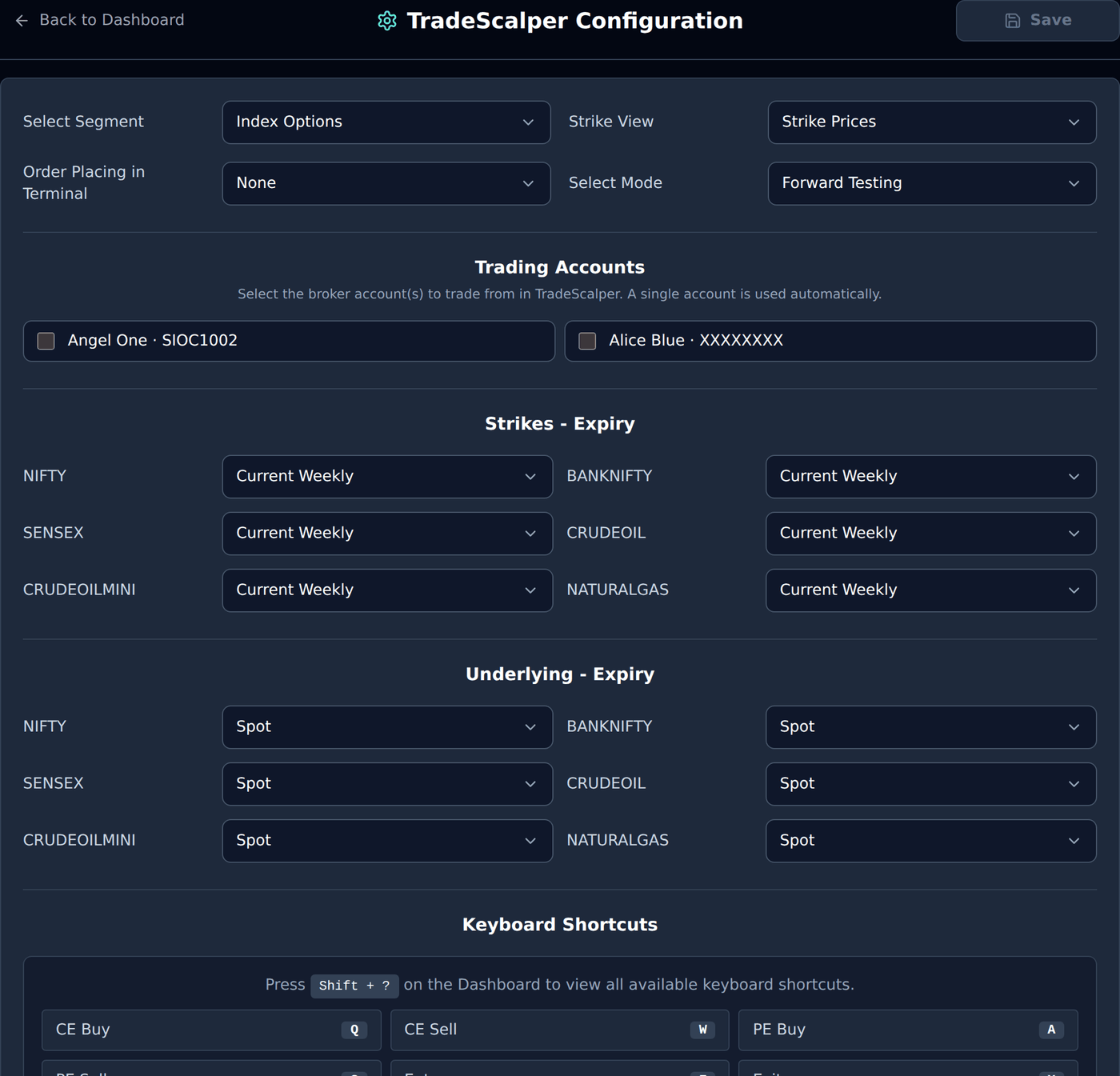
Exact field names on this page are Select Segment, Strike View, Order Placing in Terminal, Select Mode, Strikes - Expiry, Underlying - Expiry, Keyboard Shortcuts, Save, and Save Configuration.
Open Configuration when segment, mode, strike view, expiry preference, or broker-terminal protective order preference needs to be changed before trading. The page has Back to Dashboard, Save at the top, and Save Configuration at the bottom.
Loading and save state
#Loading configuration means the page is reading saved Trade Scalper settings from API or local cache.
Configuration unavailable means the settings could not be loaded. Save is enabled only after you change something. After save succeeds, the page shows Configuration saved.
Default broker is on Dashboard
#This Configuration page does not show a Default Broker dropdown in the current code.
Default broker is saved when you select a broker on the Trade Scalper Dashboard. If documentation or support says default broker, look at the dashboard broker selector, not this Configuration page.
Select Mode
#Exact field name is Select Mode. Options are Forward Testing and Live Mode.
Select Mode decides the mode Trade Scalper starts with. Forward Testing is safer for learning. Live Mode is broker-bound where supported, so before trading confirm broker connection, symbol, side, quantity, and risk values.
Example: If Select Mode is Forward Testing, you can practise the flow without live broker execution. If Select Mode is Live Mode, live order placement still needs broker connection and valid subscription.
Select Segment
#Exact field name is Select Segment. Options are Index Options, Index Futures, MCX Options, MCX Futures, and Equity.
Select Segment decides what type of instruments the dashboard should work with. Option Chain and Scalping Mode are mainly useful for option segments. Futures and Equity flows do not use CE/PE option-chain rows in the same way.
Example: If Select Segment is Index Options, Trade Scalper can show NIFTY/BANKNIFTY/SENSEX option-chain workflows. If Select Segment is Equity, you trade equity symbols without CE/PE option-chain controls.
Strike View
#Exact field name is Strike View. Options are Strike Prices and ATM/OTM/ITM.
Strike Prices means strikes are shown as actual prices like 23800, 23900, 24000. ATM/OTM/ITM means the view is based around moneyness, which can be easier for option traders who think in ATM, OTM, and ITM.
Example: If Strike View is Strike Prices, you select 24000 directly. If Strike View is ATM/OTM/ITM, you select relative strikes such as ATM or OTM instead of memorizing every strike price.
Order Placing In Terminal
#Exact field name is Order Placing in Terminal. Options are SL, Target, Both, and None.
SL means send stop-loss protective order to broker terminal. Target means send target protective order. Both means send both. None means do not place protective SL/Target in broker terminal and let the platform manage runtime behavior where supported.
Example: If Order Placing in Terminal is SL, the broker terminal can hold the stop-loss protective order. If it is None, the platform watches risk rules and sends exits when conditions are met. Use this carefully because terminal orders live at the broker and must stay aligned with platform trade state.
Strikes - Expiry
#Exact section name is Strikes - Expiry. Each row uses a symbol name such as NIFTY, BANKNIFTY, SENSEX, CRUDEOIL, CRUDEOILMINI, or NATURALGAS.
Each symbol can be Current Weekly or Current Monthly. This decides which option expiry should be used for strike selection for that symbol.
Example: If NIFTY under Strikes - Expiry is Current Weekly, NIFTY option-chain strike selection uses current weekly expiry. If BANKNIFTY is Current Monthly, BANKNIFTY strike selection uses current monthly expiry.
Underlying - Expiry
#Exact section name is Underlying - Expiry. Each row uses a symbol name such as NIFTY, BANKNIFTY, SENSEX, CRUDEOIL, CRUDEOILMINI, or NATURALGAS.
Options are Spot, Current Month Fut, Next Month Fut, and Far Month Fut. This decides what reference price should be used for each underlying.
Example: If NIFTY under Underlying - Expiry is Spot, the NIFTY spot/reference price is used. If it is Current Month Fut, the current-month futures reference is used where available.
Keyboard Shortcuts
#On desktop, the Configuration page shows a Keyboard Shortcuts section.
It says to press Shift + ? on the Dashboard to view all available keyboard shortcuts. The visible shortcut list is informational; it helps you learn faster dashboard actions.
What is not changed here?
#This page does not edit broker API credentials, client ID, password, 2FA, invoices, or platform subscription.
Use Settings for broker credentials, static IPs, security, and payments. Use Trade Scalper Dashboard for broker selection, live orders, global settings, top risk defaults, and runtime trade controls.