Strategy Automation Tools
Trade Bots Dashboard
Monitor Trade Bots scheduled strategies, running signals, P&L, and dashboard actions.
Overview
#Trade Bots automates time-based straddle and strangle strategies using configured entry time, exit time, weekdays, symbol, and risk rules.
Use this dashboard to monitor scheduled bot activity after entry: running signals, leg-level P&L, global controls, strategy exits, signal exits, and manual-exit recording.
Market Watch
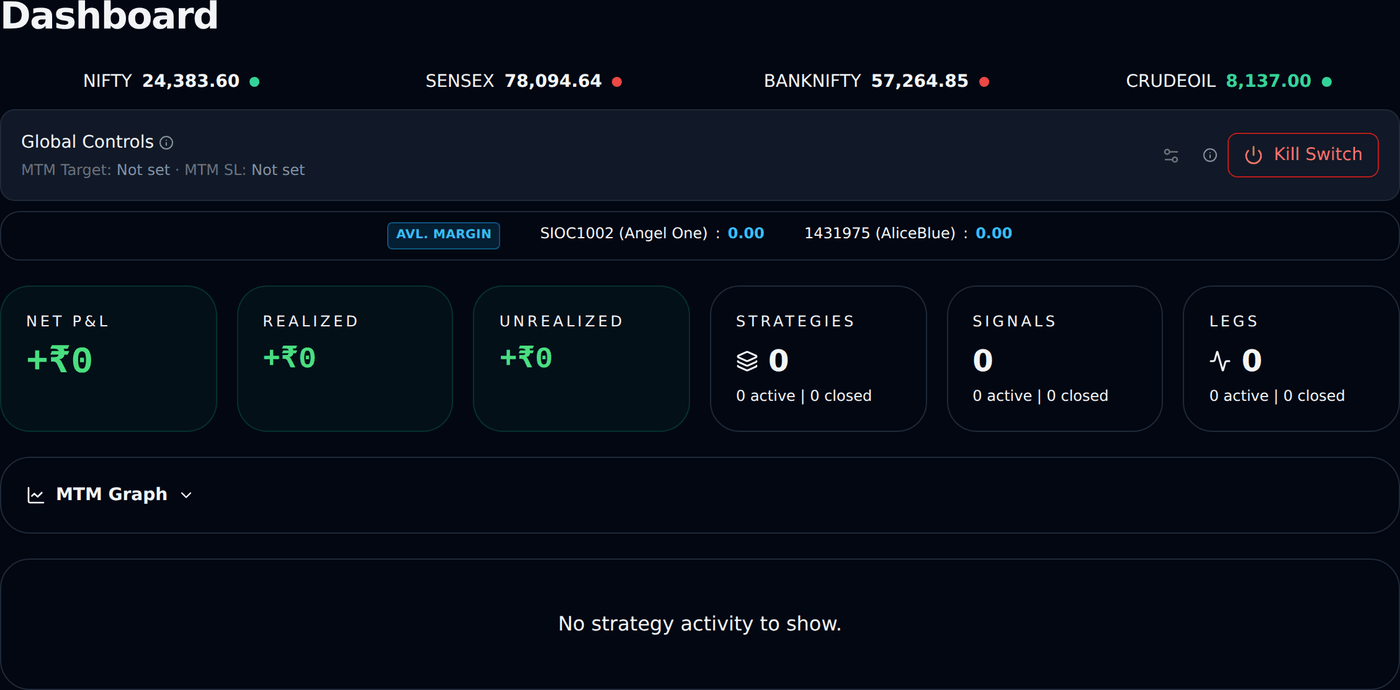
#Market Watch shows important symbols and their latest available prices from the public market feed. A green dot means both master feeds are connected and the symbol has a fresh tick; a red dot means the feed is disconnected, stale, or missing that symbol price.
Use it as a quick market reference. Do not treat it as confirmation that your order is filled. Order fill status must be checked in the strategy/leg rows or Orders.
Global Controls
#Exact field names in Global Controls are MTM Target (₹), MTM Stop Loss (₹), and Kill Switch.
MTM Target (₹) is the broad profit exit level. MTM Stop Loss (₹) is the broad loss exit level. Kill Switch is the emergency switch that can square off/block entries depending on app/admin state.
Click the small settings/sliders icon to edit MTM Target (₹) and MTM Stop Loss (₹), then click Save. Leave a value blank to disable that limit.
MTM Target
#Exact field name in the edit panel is MTM Target (₹). It is a total profit level. When the configured total profit is reached, the platform can try to exit active positions.
Example: You have two running trades. Trade A is Rs 700 profit and Trade B is Rs 300 profit. Total MTM profit is Rs 1000. If MTM Target (₹) is 1000, the global exit condition can trigger.
The value must be above the current total profit (realized + unrealized). If the account is already up by Rs 600 today, saving an MTM Target (₹) of 500 is rejected with a message to enter a value above Rs 600, because that target is already reached.
Once the target squares the account off, new entries are blocked for the rest of that day, and the dashboard shows a note under Global Controls saying so. Raise or clear MTM Target (₹) to trade again the same day; it lifts on its own the next day.
MTM Stop Loss
#Exact field name in the edit panel is MTM Stop Loss (₹). It is a total loss limit. When the configured total loss is reached, the platform can try to exit active positions.
Example: Trade A is Rs 300 loss and Trade B is Rs 200 loss. Total MTM loss is Rs 500. If MTM Stop Loss (₹) is 500, the global risk exit can trigger.
The value must be above the current total loss (realized + unrealized). If the account is already down by Rs 500 today, saving an MTM Stop Loss (₹) of 400 is rejected with a message to enter a value above Rs 500, because that loss is already reached.
Once the max loss squares the account off, new entries are blocked for the rest of that day, and the dashboard shows a note under Global Controls saying so. Raise or clear MTM Stop Loss (₹) to trade again the same day; it lifts on its own the next day.
Kill Switch
#Kill Switch is an emergency control. Turning it ON asks for confirmation, then can square off all active positions and block new entries.
Once it is ON it cannot be turned OFF again on the same day (a SEBI rule); it resets on the next trading day. Support cannot switch it off for you either. To close positions that are still open, use the Exit buttons.
Use it only when you intentionally want to stop automated activity quickly. If admin product kill switch is active, users cannot override it from the dashboard.
Dashboard Stats
#Dashboard stats summarize Net P&L, Realized P&L, Unrealized P&L, Strategies, Signals, and Legs for the visible dashboard data.
Realized means closed profit/loss. Unrealized means running profit/loss. Net is realized plus unrealized.
Realized, Unrealized, and Net
#Realized P&L is from completed/closed orders. Unrealized P&L is from trades still running. Net P&L is both added together.
Example: Realized is Rs 500 profit and Unrealized is Rs 200 loss. Net P&L is Rs 300 profit.
MTM Graph — your day as a line
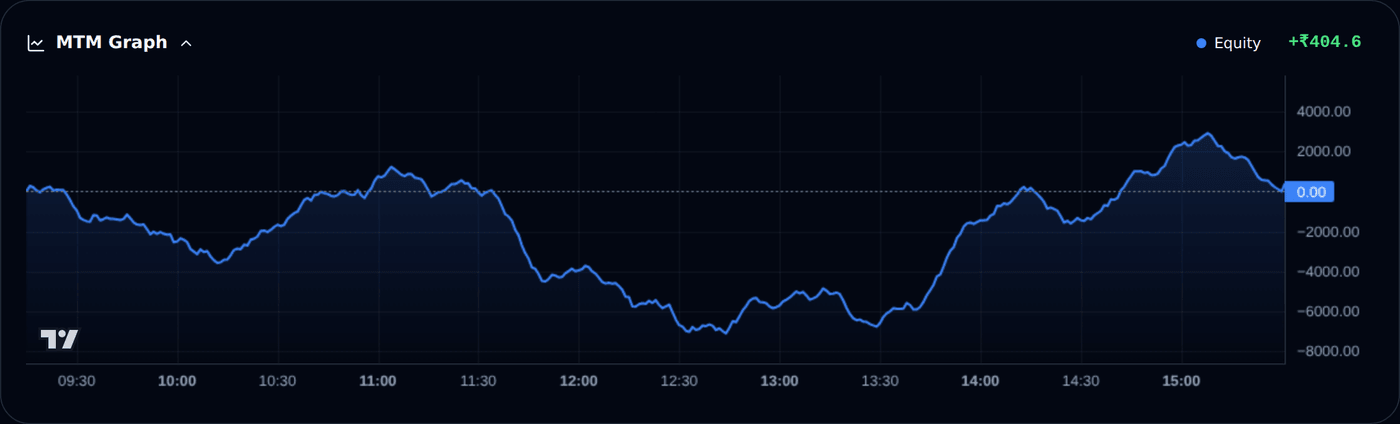
#MTM means mark-to-market: what your trades are worth right now. The MTM Graph draws your running profit and loss for today as a line, starting from market open. When the line is above the dotted zero line you are in profit for the day; below it you are in loss.
You will find it on the dashboard, just below the P&L boxes. It opens by itself on a day you have any trade, and you can close or open it with the small arrow — the page remembers your choice on this browser.
There can be two lines. The blue line is your equity segment — NIFTY, BANKNIFTY, SENSEX options and stocks. The amber line appears only on a day you trade commodities (MCX), because that market runs on its own clock: the blue line stops when the equity market closes at 3:30 pm, while the amber line carries on into the evening.
An example. Suppose you bought one option at Rs 100, quantity 65, at 10:15 am. The price moves to Rs 110 — the line climbs to +650. It slips to Rs 95 — the line goes to -325. You exit at Rs 110 — the profit of 650 is booked, so from then on the line stays at +650 unless another trade moves it.
The graph matches the Net P&L box beside it: on this dashboard that is your live and Forward Testing trades of this app added together. Hover the mouse (or touch and hold on a phone) anywhere on the line to read the exact time and value at that moment.
- A new point is added every minute; the last point moves almost live with prices.
- The graph shows only today. It clears every night and starts fresh the next morning — past days live on the Analytics page.
- Each app has its own graph. A TradeBots trade will not appear on the TradeBridge graph.
- If you had no trade today, the card says "No trading activity yet today" — that is normal, not an error.
Strategy Card
#A strategy card groups all activity for one Trade Bots strategy.
The card shows strategy name, number of signals, active/closed counts, and P&L. Expand it to see signal sections.
Exit Strategy
#Exit Strategy is the highest-level exit button inside a strategy card.
For Trade Bots, it exits the active strategy signal and its open legs.
Clicking it requests exits, but the exit is complete only after broker exit orders complete.
Signal Section
#The Signal section groups executions and legs for that signal.
It shows symbol, segment, mode, active count, closed count, leg count, and signal-level realized, unrealized, and net P&L. Expand Legs to see each entry leg row.
Signal Controls (MTM)
#Signal Controls change runtime controls for the running signal without editing the saved strategy template.
Exact field names in Signal Controls are Overall Stop Loss (MTM Rs), Overall Target (MTM Rs), Enable Overall Trailing Stop (MTM), Trail Every X (MTM Rs), Trail By Y (MTM Rs), and Trade Type For Running Signal.
Overall Stop Loss (MTM Rs) is the combined signal loss limit. Overall Target (MTM Rs) is the combined signal profit target. These are not single-leg option prices.
Example: a running signal has two legs. Leg 1 is Rs 700 profit and Leg 2 is Rs 300 profit. Combined signal MTM is Rs 1000. If Overall Target (MTM Rs) is 1000, the signal can try to exit all open legs.
Trailing example: if Enable Overall Trailing Stop (MTM) is ON, Trail Every X (MTM Rs) is 1000, and Trail By Y (MTM Rs) is 500, then after signal MTM reaches Rs 1000 profit, the signal stop can improve by Rs 500. At Rs 2000 profit, it can improve by another Rs 500.
Trade Type For Running Signal lets you convert the running signal between Intraday and Positional where the app allows it. Do this only when you understand product and broker impact.
Exit Signal (All Legs)
#Exit Signal exits all open legs under that signal.
Use this when one signal should be closed, but you do not want to exit other strategies or other signals. The action is complete only after exit order status becomes complete.
Place SL/Tgt
#Sometimes the broker or the exchange cancels your stop-loss or target order while your position is still open. This can happen during a fast market move, when the exchange rejects the resting order with a message such as price out of range. Your position stays open, but there is no stop-loss sitting at the broker any more.
Place SL/Tgt puts those orders back at the broker for that signal. It is on the signal row on the Dashboard, next to Exit Signal.
It places them at your current levels, not your original ones. If your stop-loss started at Rs 90 and trailing moved it to Rs 95, the button places it at Rs 95, so you do not give back what trailing already protected.
It is safe to press. It first checks with the broker whether a stop-loss or target is already there, and places only what is missing, so the same order is never placed twice.
Important: always use this button instead of placing a stop-loss yourself in your broker terminal. Bluechip Algos cannot see an order that you place directly at the broker, so the app may still send its own exit and the position could get sold twice.
If the price has already crossed your stop-loss level, the broker will not accept a new stop-loss order. In that case the app is already exiting the position for you.
This button applies to price-based stop-loss and target only. MTM-based and underlying-based controls, and Lock & Trail, are always managed by the app and are never placed at the broker.
Unfilled entries are re-placed once at the current price
#Entries are sent to the broker as limit orders at the live price plus a small buffer, so they normally fill immediately.
If the market moves away before the order fills, the order would just sit at the broker at a stale price. After about 30 seconds, the app cancels that unfilled order and places it once more at the current live price plus the buffer.
This is why your broker terminal can show one cancelled entry and a second entry at a slightly different price. That is normal and intentional.
It happens at most once per order — the app never chases a running market, so you are never filled at a price far from what your strategy asked for. Before placing again, the app first confirms with the broker that the original order is genuinely cancelled and unfilled, so a position can never be doubled.
When one leg fills and another does not
#In a multi-leg strategy, one leg can fill while another is rejected by the broker (usually for margin) or misses its price.
You get an alert naming the contract that did not fill, because holding only part of a spread is a different risk than the strategy intended.
The legs that DID fill are protected immediately — each filled leg gets its own stop-loss and target the moment it fills. It never waits for the other legs.
If the strategy is set to All-or-None, the app instead exits the filled legs automatically as soon as any leg fails, so you never hold half a spread.
Legs Table
#The Legs table shows each running entry leg that has not completed its exit yet.
Columns include Leg Ref, Leg, Side, Qty, Entry Time, Entry Price, Running LTP, Exit Time, Exit Price, Status, and Action. If an exit is already complete, that leg is removed from the running table. Full IDs remain available in Analytics/admin when needed.
Leg Controls
#Leg Controls are opened from the sliders/settings icon in the Action column of a leg row.
Trade Bots leg runtime controls do not show Auto Exit Time in this modal.
Exact field names in Leg Controls are Stop Loss, Target, Enable Trailing Stop, Trail Every X, Trail By Y, Unit, Enable Trail to Cost, Trigger Value, Auto Exit Time, and Exit Delay (seconds).
Stop Loss and Target change only this one running leg. They do not edit the saved strategy template.
BUY example: entry Rs 100, quantity 1, initial SL Rs 90. If Stop Loss uses Points and value 10, exit is at Rs 90. If Target uses Points and value 30, profit booking is at Rs 130.
Trailing example: turn Enable Trailing Stop ON, set Trail Every X to 10, Trail By Y to 5, and Unit to Points. When price reaches Rs 110, SL moves from Rs 90 to Rs 95. When price reaches Rs 120, SL moves to Rs 100.
Trail to Cost example: turn Enable Trail to Cost ON, set Trigger Value to 20 and Unit to Points. When price reaches Rs 120, SL moves to entry price Rs 100.
Auto Exit Time exits this leg at the selected time if still open. Exit Delay (seconds) waits that many seconds before sending the leg exit order.
Leg Control units
#Exact Unit options for trailing and T2C are Points, Percent, and MTM where supported. Stop Loss and Target can also use types such as Points, Percent, Absolute Price, MTM, and Underlying depending on the workflow.
For beginners, Points is easiest: BUY at Rs 100, Stop Loss Points value 10 means SL at Rs 90; Target Points value 30 means target at Rs 130.
If Unit is Percent, the value is calculated as a percentage of price. If Unit is MTM, the value is calculated on profit/loss amount instead of direct option price.
Exit Leg
#Exit Leg exits only that one leg.
Use it when you want to close one leg but keep other legs or signals running. Example: If a strategy has CE BUY and PE BUY legs, Exit Leg on CE closes only the CE leg.
Exited Manually
#Use Exited Manually only after you have already closed that leg outside the platform, for example directly in the broker terminal.
The system asks for actual exit price so dashboard, orders, and analytics can stay consistent. Do not use this button if the position is still open.
Status Values
#Running means the entry is active. Exiting means exit order work is in progress. Completed means the leg/order is closed. Rejected means broker or platform rejected the order.
Always wait for Completed before assuming an exit is finished.
Common Dashboard Example
#Assume you BUY one option at Rs 100, quantity 1, and initial SL is Rs 90.
In Leg Controls, Stop Loss Points value 10 means exit at Rs 90, Target Points value 30 means exit at Rs 130, Enable Trailing Stop with Trail Every X 10, Trail By Y 5, and Unit Points trails SL from Rs 90 to Rs 95 at price Rs 110, and Enable Trail to Cost with Trigger Value 20 and Unit Points moves SL to Rs 100 when price reaches Rs 120.
In Signal Controls, Overall Stop Loss (MTM Rs), Overall Target (MTM Rs), Trail Every X (MTM Rs), and Trail By Y (MTM Rs) work on total MTM of all open legs in the signal. Global Controls work more broadly across active automated positions.