Discretionary Trading Tools
Trade Charts Configuration
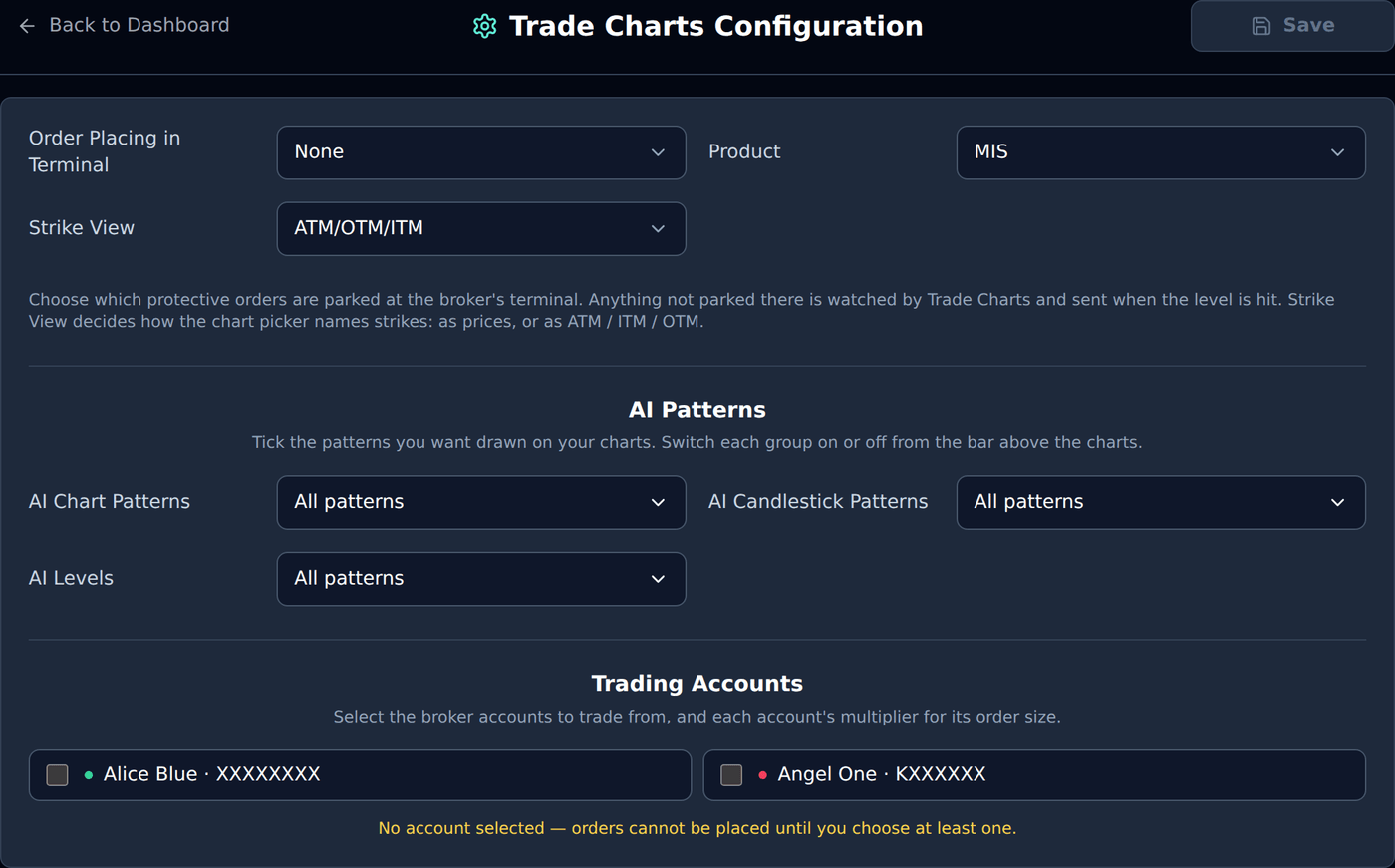
Trading accounts, where your stop and target are kept, product, strike view and which patterns to draw.
The settings that stay the same from day to day
#Open Configuration with the gear at the right end of the common bar. Change what you need and press Save at the top right. Back to Dashboard returns to the charts.
Trading accounts
#Tick the broker account or accounts Trade Charts should trade from. Orders go to every ticked account.
If only one account is connected, it is used automatically. With more than one, nothing is ticked until you choose, and the page says No account selected — orders cannot be placed until you choose at least one. The platform will not guess which of your accounts to use.
The green dot beside an account means its broker session is live today.
Order Placing in Terminal
#This decides who holds your stop and target: your broker, or Trade Charts.
When a level is kept at the broker, it stays there even if your internet drops. When Trade Charts watches it, the exit order is sent the moment the price reaches the level. Either way, dragging a line moves the level wherever it is kept.
- SL — the stop loss is placed as an order at your broker; Trade Charts watches the target.
- Target — the target is placed at your broker; Trade Charts watches the stop.
- Both — both are placed at your broker.
- None — nothing is placed at the broker; Trade Charts watches both and sends the exit.
Product
#MIS for intraday, NRML to carry a position overnight. Every order from Trade Charts uses this. The default is MIS.
Strike View
#How the strike picker on each chart names strikes. ATM/OTM/ITM (the default) shows ATM 24250, 2 OTM 24350, 1 ITM 24200. Strike Prices shows plain numbers.
In ATM/OTM/ITM view, a chart remembers that you chose, say, 2 OTM, which is what lets it offer Update when the market moves. See When ATM moves.
Which patterns to draw?
#Three dropdowns — AI Chart Patterns, AI Candlestick Patterns and AI Levels — each with a tick box for every pattern in that family. All patterns means every one is drawn.
Click outside an expanded list, or press Escape, to close it. Your ticks stay selected.
Example: untick everything under AI Chart Patterns except Double Top and Double Bottom, and only those two are drawn when the Chart switch in the bar is on.