Discretionary Trading Tools
Trade Disc Adjustments
The panel the tool is named after — shift a strike, change the size of a leg, and set a stop loss and a target on it.
The panel the tool is named after
#Adjustments holds one row per open leg and every button that changes it. A leg you closed is not here — it has moved to Live Positions and to Orders. This panel is only what is live.
The buttons are in three coloured groups, and the colour tells you what a press will change.
- STRIKES, in red — move the leg to a different strike.
- QUANTITY, in indigo — make the leg bigger or smaller.
- SL / TGT, in amber — put a stop loss and a target on it, or take them off.

Reading a row
#The left-hand columns are the leg itself, before any button.
- Exit — closes this leg. One click, no confirmation.
- Expiry — the date this contract expires, which is not always the date the chain is showing.
- Client ID — the broker account this leg is at. It is always shown, and it comes before the contract, because with two brokers connected the same contract appears twice and the account decides what an Exit hits.
- Symbol, CE/PE, Entry Type (BUY or SELL) and Product (MIS or NRML).
- Entry (Avg) — what you paid or received. If you have added quantity, it is the average across the adds.
- LTP and PNL — the price now, and what this leg is worth.
Shifting a strike
#The five red buttons in the middle are the heart of the tool. Current is the strike you are on now; the arrows move away from it.
«— one strike down.««— two strikes down.»— one strike up.»»— two strikes up.- Custom — a list of every strike on the ladder. Picking one shifts the leg there immediately; there is no second button to press.
What a shift actually does?
#One press, two orders. It closes the leg you hold and opens the same leg — same side, same quantity — on the new strike, and it waits for the first to fill before it sends the second.
A stop loss or target set in points or rupees stays as it was. One set as a percentage is worked out again from the new premium, because a percentage of the old premium means nothing on a different strike.
While it runs, the row reads Rolling → 24350.
Target strikes are found by walking the real ladder on the chain, one listed strike at a time. If there is no strike where the arrow points, nothing is sent at all and the row is left exactly as it was.
A shift, in rupees
#NIFTY is at 24,250 and you are short one lot of the 24,250 CE, sold at Rs 100. A lot is 75.
NIFTY moves to 24,330. The 24,250 CE is now Rs 140, so the row shows a PNL of −Rs 3,000.
You press »». Trade Disc buys the 24,250 CE at Rs 140 — booking the Rs 3,000 — and sells the 24,350 CE at Rs 95. Your row is now the 24,350 CE, one lot, entry Rs 95.
The Rs 3,000 does not disappear. It is booked, it shows in Live Positions on the 24,250 CE row and in Total P&L, and it counts towards any Global MTM limit you have set.
When a shift does not complete
#Every order is tried once, so a shift ends in one of three places and each one is visible.
- The exit does not fill → nothing else is sent, and you still hold the original leg exactly as it was.
- The exit fills only partly → nothing is re-entered. You are left with a smaller position on the old strike.
- The exit fills but the new order is rejected → you are flat, the rejected row is on screen and an alert goes out. This is the one to keep free margin for; a rejected re-entry is nearly always margin.
- Nothing is retried automatically. If you want the position back, place it yourself.
Custom — going straight to a strike
#The Custom dropdown is the list of strikes on the chain currently on screen. Choosing one shifts the leg there at once.
For a leg on a different expiry the list is greyed out, and hovering says so: those are the wrong strikes for that contract. Switch the chain to the leg’s own expiry and the list comes back.
« and » keep working in that situation, because they walk the leg’s own ladder on the server rather than the list on your screen.
Changing the size of a leg
#The indigo group changes how much of the leg you hold, without touching the strike. The number in the middle is the quantity open right now, in units.
- − exits one lot. + adds one lot.
- Exit 50% exits half. Add 50% adds half the position again.
- Exit Qty and Add Qty ask you how many lots, in a small box. Type the number and press Enter.
- Half of an odd number of lots is rounded down: 5 lots halved is 2 lots exited, not 3.
- Adding quantity averages into the same position. Buy 1 lot at Rs 100, add 1 lot at Rs 120, and Entry (Avg) reads Rs 110 on one row. After a full exit, a new entry starts fresh with no memory of the old average.
Stop loss and target
#The amber group holds both. The SL / TGT column reads them as a pair — 90 / 120 means a stop loss at Rs 90 and a target at Rs 120 — and -- means no level is set.
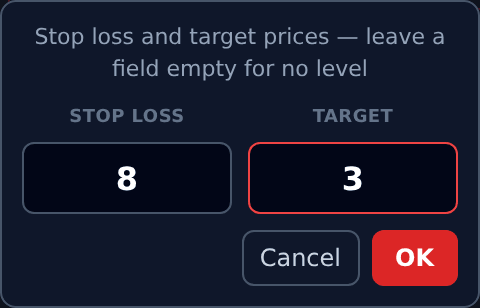
Edit opens one small box with both fields, because they are one decision. Type prices in rupees, leave a field empty for "no level", and press OK. Cancel on the row clears both at once.
Take the house example: you bought at Rs 100. Type 90 into Stop loss and 120 into Target and the column reads 90 / 120. If the premium falls to Rs 90 the leg is closed for a loss of Rs 10 a unit; if it reaches Rs 120 it is closed for a gain of Rs 20 a unit.
A level on the wrong side of the market is refused, and the message says why. A BUY leg’s stop loss has to be below the current price and its target above it; for a SELL leg it is the other way round. Without that check, a level already passed would fire on the very next tick and close the leg you just protected.
The bar along the bottom — every leg at once
#The row of buttons under the table does the same things to every open leg, which is what makes a four-leg position manageable.
- CE
<<<>>>— shift every open call leg, by one or two strikes, down or up. - PE
<<<>>>— the same for every open put leg. - ALL
<<<>>>— shift every open call and put leg together. Say you sold the 24,250 straddle and NIFTY moved up to 24,300: one click on ALL>moves both legs to 24,300, the new ATM. Before, that took two clicks, one on each side. - Exit CE and Exit PE — close one whole side. If you hold nothing on that side, it says so instead of pretending an order went out.
- Qty: Exit Qty · −50% · − · + · +50% · Add Qty — the same quantity actions as a row, applied to every open leg. The order of the buttons is the order they are in on a row.
- Every leg is still tried once, on its own. One leg failing does not stop the others, and the result of each is reported separately.
Rows that are still waiting
#A LIMIT order sitting at the broker appears here with an amber Pending tag beside the symbol.
It is not a position, so nothing can be shifted, resized or protected on it. The only live button is Cancel.
There is no modify. To change the price, cancel it and place it again from Entries.
Adjustments in its own window
#The small icon at the top right of the panel opens Adjustments alone in a second browser window, filling it.
It is meant for a second monitor: the chain and the books on one screen, the adjustment buttons big on the other. It is the same panel, live, not a copy.
When something looks wrong
#In the order worth checking.
- Every button on a row is greyed out. Either the row is
Pendingand has not filled, or an action on it is already running. - Custom is greyed out. The leg is on a different expiry from the chain. Use
«and», or switch the chain. - A stop loss was refused. It was on the wrong side of the current price — the message says which side it needed to be.
- A shift left me flat. The exit filled and the re-entry was rejected. The rejected row and the reason are on screen; check available margin before shifting again.
- A bulk button did nothing. You hold no open legs on that side. The button tells you rather than sending an order.