Start Here
Login & Setup
Learn how to open the platform, log in, understand preview mode, and prepare for live trading.
Before login
#You can open the Trading Tools page before login. When you are not logged in, available live apps show Preview instead of Open.
Preview lets you look around, but real work needs login. To save strategies, connect a broker, place orders, change settings, or download payment invoices, you need to log in with your registered email and password.
- Keep your registered email and password ready.
- Use the same Login for all web apps.
- Do not share your password or broker credentials with anyone.
Open Trading Tools
#The Trading Tools page is the first page of the web platform. It shows app cards under Discretionary Trading Tools, Strategy Automation Tools and Investing Tools, in that order.
If you are logged out, app cards show Preview. If you are logged in, app cards show Open, but the app itself may still require an active subscription before live actions are allowed.
- Trade Bridge converts external signals into trading strategies.
- Trade Bots automates time-based straddle and strangle strategies.
- Trade Scalper is for fast discretionary intraday trading.
How to log in?
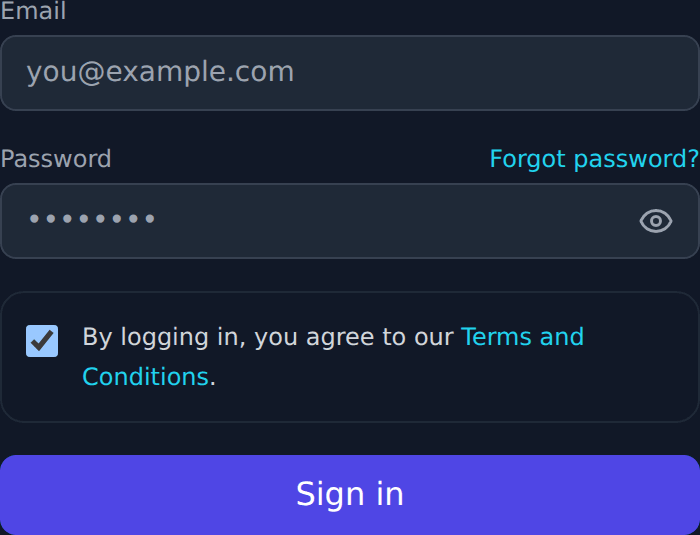
#Click Login, enter your registered email and platform password, and click Sign in.
After successful login, the platform takes you back to Trading Tools. The same session works across Trade Bridge, Trade Bots, Trade Builder, and Trade Scalper.
- Use your registered email address.
- Passwords are case-sensitive.
- If 2FA is enabled, enter the 6-digit authenticator code after password login.
- If login fails, read the exact error shown below the form.
After login
#After login, open the app you want from Trading Tools. The top area also shows Settings and Logout.
If your product subscription is active, you can continue to broker connection and live actions. If it is not active, the app shows a subscription warning and blocks actions such as save, connect, order placement, and runtime changes.
Password reset
#Use Forgot password? on the Login page if you cannot log in. First enter your registered email, then click Forgot password?.
For security, the page shows the same message even if the email is not registered: If this email is registered, a reset link has been sent. Check the correct email inbox, spam, and promotions folders.
- The reset link is sent to the registered email address.
- The reset link expires after a short time. The default backend setting is 30 minutes.
- After reset succeeds, go back to Login and sign in with the new password.
- Do not forward password reset emails.
Two-factor authentication
#2FA adds one more safety step after your password. If it is enabled, login asks for the 6-digit code from Google Authenticator, Microsoft Authenticator, Authy, or a similar app.
If you lost access to the authenticator app, click Reset 2FA during the 2FA step. You must enter the same email and current platform password. The page then shows a new QR code and manual setup key. Scan it, enter the new 6-digit code, and login continues.
Subscription warning
#A subscription warning means your account does not currently have active access for that tool.
You may still browse some pages, but real actions such as strategy save, broker connect, order placement, and runtime changes are blocked. Use the Payment page when you need to activate a product subscription.
Broker connection warning
#A broker connection warning means your subscription is active, but no broker session is connected right now.
Open Settings, select the assigned broker account, enter required credentials if needed, and connect or reconnect the broker.
Preview mode
#Preview mode is what visitors see before login. It is for learning the screens only.
Trade Bridge and Trade Bots may show demo strategy workflows. Trade Scalper can show snapshot-only option-chain/market data. Preview cannot save strategies, connect brokers, save Trade Scalper settings, place orders, exit orders, or change live runtime controls.
Live account actions
#Live account actions include saving a strategy, connecting a broker, placing an order, exiting an order, and changing runtime controls.
These actions require Login, an active subscription for the selected tool, and the correct broker connection where trading is involved.