Investing Tools
Equity Rebalancer: Getting Started
Hold a fixed number of stocks in equal amounts and churn the list every week or month, in one click.
One click to churn an equal-weighted basket
#Equity Rebalancer is for investors who hold a fixed number of stocks in equal amounts and change that list every week or every month. You give it this period's stock list; it works out exactly what to sell and what to buy so that every stock ends up holding the same amount again, and places all the orders together.
It buys and sells shares for delivery — the stocks stay in your demat account until you sell them. It is not an intraday tool.
The part that is hard to do by hand is the money. Your profit or loss from last period has to be spread across every stock, not just the new ones. That is the arithmetic this tool does for you.
Which tool is this, and how is it different?
#Bluechip Algos has seven trading tools. Three place trades from a signal, three are for trading by hand, and one manages a stock portfolio. The quickest way to tell them apart is to ask what decides the entry.
- Trade Scalper — you decide, trade by trade. A discretionary tool for intraday traders and scalpers, with advanced controls built for option traders.
- Trade Disc — you decide, and then you adjust. A discretionary terminal for option traders who change a position after it is open — moving a leg to another strike, or changing its size, in one click.
- Trade Charts — you decide, on the chart. Options traded straight from the candles — entry, stop loss and target are lines you drag, with patterns and indicators drawn on the same chart.
- Trade Builder — indicators decide. RSI, moving averages, Supertrend, levels and candle patterns, worked out inside the platform on official candles. It analyses the index and places the order in options.
- Trade Bots — the clock decides. You give it times — enter at 09:20, exit at 15:10, on these weekdays. Straddles and strangles built around a schedule rather than an indicator.
- Trade Bridge — somebody else decides. Your signal comes from a third party such as TradingView. You configure what to trade here in Trade Apps, and the order is executed in your broker terminal.
- Equity Rebalancer (this one) — your stock list decides, on your schedule. You hold a fixed number of stocks in equal amounts and change the list every week or month. It works out what to sell and buy so every stock is even again, and buys shares for delivery rather than trading intraday.
Who it suits, and who it does not?
#It suits you if you already follow a momentum or ranking method that gives you a fresh list of stocks each period, and you hold them in equal amounts.
It does not suit you if you pick stocks one at a time and hold them for different amounts, or if you trade intraday. There is nothing here for a trader who buys and sells the same day — use Trade Scalper for that.
It does not tell you which stocks to buy. The list is yours. The tool only does the arithmetic and places the orders.
What you need before you start?
#Three things:
- A connected broker account (Settings → Brokers). Orders are placed there.
- The money you want to invest, and the number of stocks you want to hold.
- Your stock list for this period.
Creating a basket
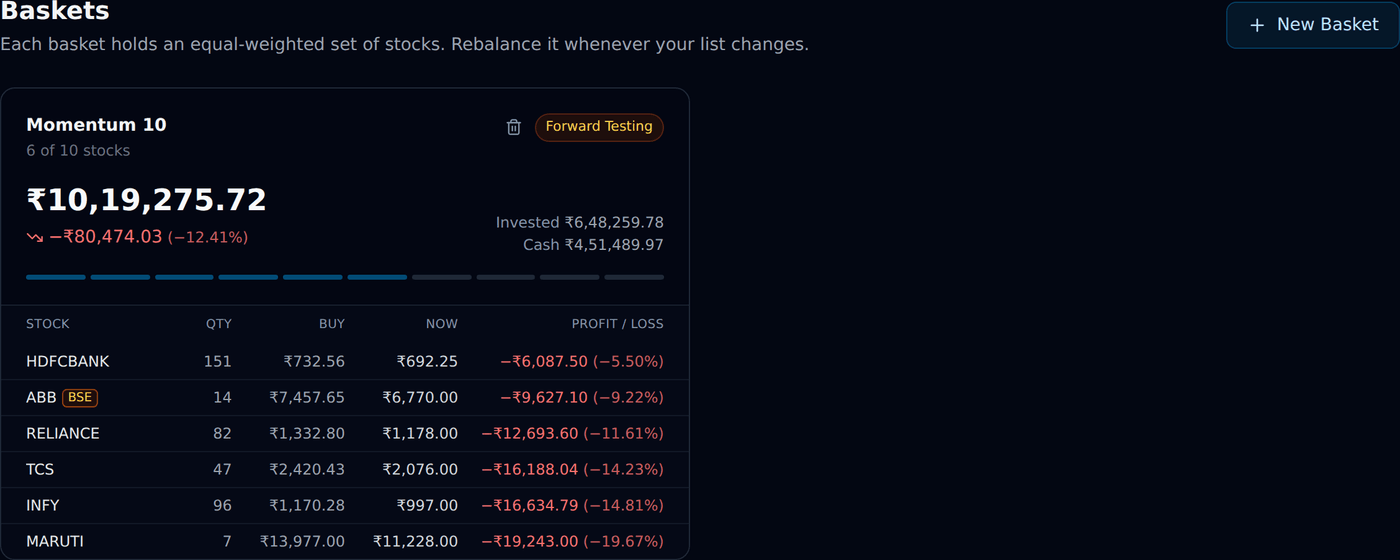
#A basket is one portfolio. Press New Basket and give three things: a name, how many stocks it should hold, and the broker accounts and the money in each.
The accounts box has All accounts ticked to begin with. Type one amount and it goes into every account you have ticked; if one account should hold a different amount, change it on its own line. The total is shown before you save.
You can run more than one basket — for example a 10-stock momentum basket and a separate 5-stock largecap one — each with its own money.
If you already own some of these stocks, the next screen shows them. Tick the ones that belong to this basket and they are brought in at the price you paid — nothing is bought, and anything you leave alone is untouched. You can skip this and do it later from inside the basket.
The money works one way, and it is shown on that screen before you press anything: the shares you bring in come out of the capital you just entered. Put in Rs 20,00,000 and bring in Rs 12,00,000 of stock, and Rs 8,00,000 stays as cash. If the shares cost more than the capital you entered, the basket's capital is raised to cover them — Rs 10,00,000 entered against Rs 12,00,000 of stock makes the basket Rs 12,00,000, with no cash left.
Why the number of stocks matters so much?
#The number you enter is what your money is always divided by. It is not just a limit.
Say your basket is set to 10 stocks and holds Rs 10,00,000. Each stock gets Rs 1,00,000.
Now suppose this month your screener gives you only 8 names. The tool still divides by 10, so those 8 stocks get Rs 1,00,000 each and Rs 2,00,000 stays as cash. That cash is not idle by accident — it is waiting for the two stocks that are missing. Next month, when two new names appear, that money buys them.
If it divided by 8 instead, each stock would get Rs 1,25,000, and next month there would be no money left to buy the new names without selling something first.
You can change the number of stocks at any time from inside the basket. A basket holds up to 50 stocks.
Entering this period's stock list
#At the bottom of the basket there is a box for this period's stock list. Start typing and the stock names appear underneath — pick yours from the list, and it becomes a tag in the box. If your list is somewhere else, paste the whole thing at once; commas, new lines or spaces all work.
The box is the complete list, not an addition. A stock you hold that is not in it is marked Leaving and will be sold in full. A stock that appears in both your old and new lists simply stays — it is never sold and bought back, only topped up or trimmed by the difference. A stock that is new is bought with the money the sales raise.
That is what makes a shorter list one action. If your basket holds ten stocks and this month your screener gives eight names, type those eight: the two that are missing are sold, and the six that stayed are adjusted.
A name that does not exist stays in the box in red, and is named underneath. It is never traded. Check the spelling — a company may be listed under a different name than you remember.
NSE or BSE — your choice, per stock. The list underneath shows a stock once for each exchange it trades on, NSE first. Pick the NSE row and it is an NSE stock; pick the row marked BSE and it is bought, priced and sold on the BSE, and shows a small BSE tag wherever it appears. A pasted name is taken as NSE unless you write it as BSE:ABB, or the company is listed only on the BSE — then it goes in as a BSE stock on its own. The two listings of one company are two different stocks to the basket, each with its own price and its own stop loss and target.
The box starts empty every time. While it is empty, nothing changes. Leave it empty and your basket stands exactly as it is.
What the basket screen shows you?
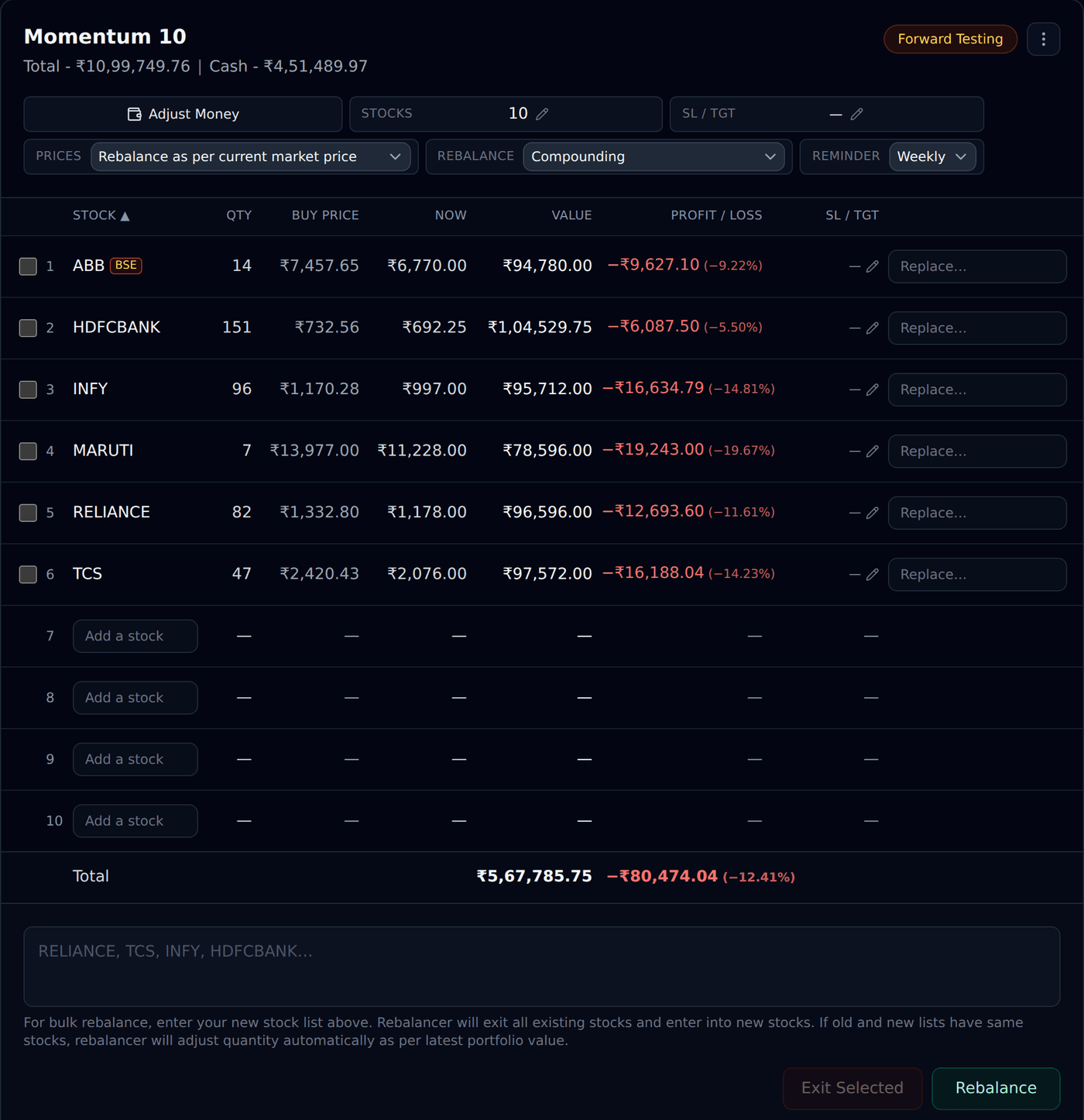
#Each stock has one line: Qty, the Buy price you paid on average, the price Now, what it is worth, and the profit or loss in rupees and percent. The list ends with a Total line, the way your broker's positions page does.
Every profit figure is measured against what the stock cost you, not against yesterday's close. A stock bought at Rs 732.91 and now at Rs 731.00 shows −0.26%.
If your basket runs on more than one broker account, these lines show every account added up. Use the dropdown at the top to look at one account on its own.
The list opens in alphabetical order. Click any column heading — Qty, Buy price, Now, Value or Profit / loss — to sort by it instead, and click it again to reverse. The rows never shuffle while you are adding or replacing stocks: a new stock waits at the bottom until the rebalance actually buys it.
Selling a stock, or swapping one for another
#There are two different things you may want, and they are separate on purpose.
To sell stocks and keep the money as cash: tick the box beside each one and press Exit Selected. They are sold straight away, in one go. The rest of the basket is left alone — it will be off equal weight until you rebalance, which is what selling one stock means.
The same selling is on the Position Book page, where every basket you run is listed together. Tick any rows there and press Exit selected, or use the Exit button on one row. It does exactly what Exit Selected inside the basket does — same sale, same one attempt, same effect on the basket.
To swap one stock for another: use the Replace… field on that stock's line and pick the new one. Nothing happens yet — the replacement sits beside the stock it will replace, with a small x to cancel it. It happens when you press Rebalance.
Anything the screen is about to do can be undone before you press the button. A Leaving mark, a replacement, a stock you added — each has an x.
Setting a stop loss and a target
#Every stock line has an SL / TGT column showing the two prices that stock is sold at, like 90 / 110, with a pencil to change them. When one of those prices is reached, that stock is sold and the money stays in your basket as cash — exactly what Exit Selected does, done for you.
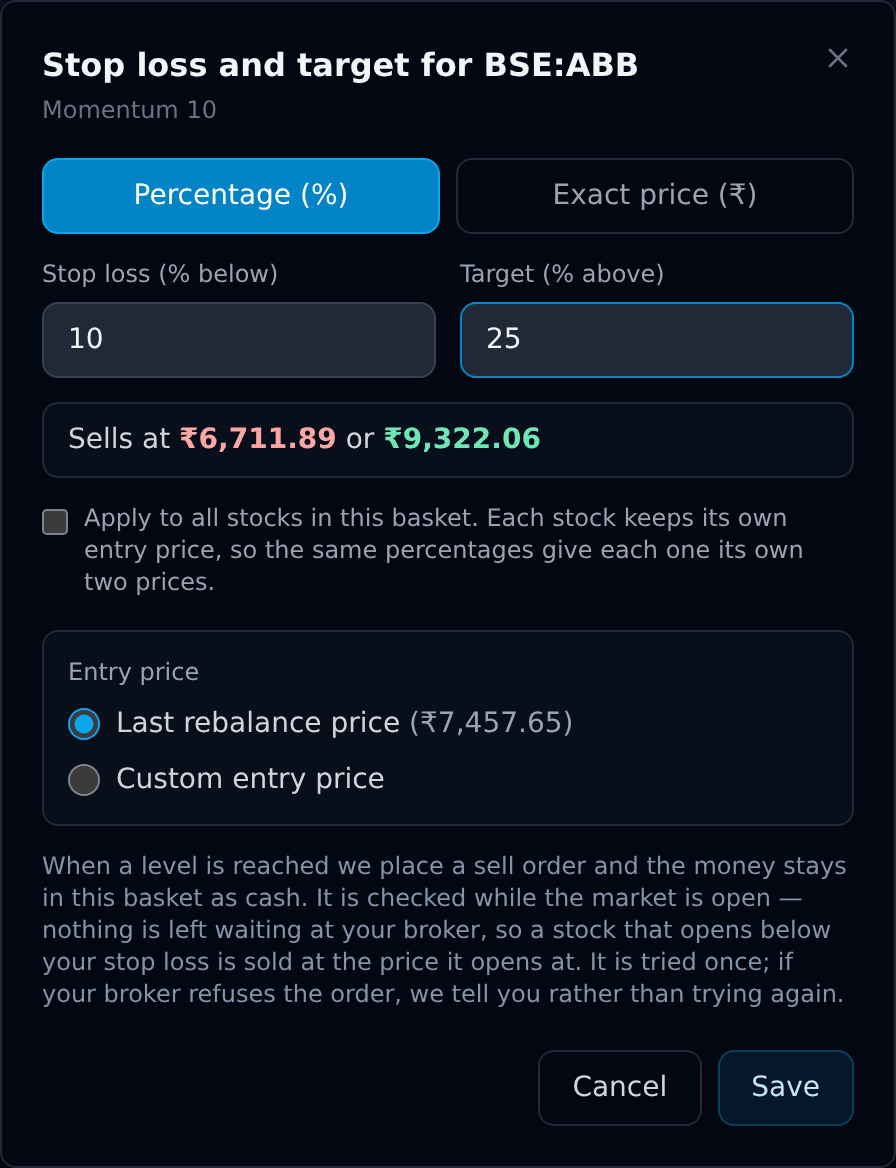
Press the pencil and a small box opens. Type a stop loss and a target. They start as percentages, which is what most people mean — 10% below and 25% above — and you can switch to an exact price if you would rather type the number itself.
Below those two boxes is the price they are measured from: Entry Price: Last Rebalance, with the price shown. That is the price the stock was traded or valued at the last time you rebalanced. If you got in at a different price and want to use yours instead, choose Custom entry price and type it.
A worked example. Your entry price is Rs 100, you set a stop loss of 10% and a target of 25%. The box shows Sells at Rs 90 or Rs 125 as you type, and the column then reads 90 / 125.
To give every stock the same levels at once, tick Apply to all stocks in this basket. Each stock keeps its own entry price, so the same 10% gives a Rs 100 stock a stop at Rs 90 and a Rs 2,000 stock a stop at Rs 1,800. This tick is offered for percentages only — an exact price belongs to one stock.
The basket has levels of its own too, next to the other settings at the top: Basket SL/TGT. These are measured against what the basket is worth, and when one is reached, every stock in that broker account is sold. If your basket runs on more than one account, the same percentage is applied to each account separately, against its own value — so one account can stop out while another carries on.
Whichever is reached first wins. A stock with its own stop loss can be sold on its own; if the whole basket falls to its own stop loss, everything in that account goes.
What a stop loss here can and cannot do?
#This is worth reading before you rely on it.
Nothing is left waiting at your broker. There is no stop order sitting in your demat account. We watch the price and place the sell order when your level is reached, so it works while the market is open.
A gap opens below your stop. If a stock closes at Rs 95 with your stop at Rs 90 and opens the next morning at Rs 80, it is sold at around Rs 80 — the price it opens at, not your stop price. That is true of any stop loss that is not resting at the exchange, and it is why a stop is a limit on your loss, not a promise.
One more try, five minutes later. If the sell fails, we tell you on Telegram and try once more five minutes later — but only after checking with your broker that the first order is not still open or already filled and that the shares are still in your demat. You get a second alert with the result. We do not try again when waiting cannot help — not enough funds, a stock blocked for trading, or a static IP your broker does not accept — or in the last five minutes before the market closes. After the second try nothing more is sent: check the Orders page and sell it yourself if it is still there.
Failed or incomplete buys and sells, unclear order outcomes and interrupted sell runs use the Telegram Emergency bucket. Link Telegram and keep Emergency alerts enabled. Normal fills and a stop-hit notice are separate from a failure alert. An alert names the stock, portfolio or basket and broker account. Automatic resubmission stops; an unclear order may still be open at the broker. Check Orders and the broker order book before placing another order. Forward Testing never sends Telegram alerts.
Rebalancing sets it again. After a rebalance, each stock's entry price becomes the price it just traded at, so your percentages follow the basket forward instead of pointing at last month's prices.
Adding or taking out money does not trip the basket-level levels: the value they are measured from moves by the same amount, so putting Rs 1,00,000 in is never read as a Rs 1,00,000 profit.
Reinvesting profits, or investing a fixed amount
#Next to the reminder there is a setting that decides how much of the basket each rebalance invests. It has two choices, and a new basket starts on the first.
Compounding — reinvest profits. Every rebalance divides everything the basket is worth, so last period's profit goes back to work with the rest. This is what most people want and what the tool has always done.
No compounding — invest a fixed amount. You give the amount, and every rebalance divides that instead. Your profit is never reinvested: it builds up as cash in the basket, and you take it out with Add / Remove Money whenever you like.
The amount is shown under the setting, and it looks after itself: it starts as the capital you opened the account with, and every time you add or take out money with Add / Remove Money, it moves by the same amount. There is nothing separate to maintain — the money you have put in is the money it invests.
An example with a 10-stock basket you opened with Rs 10,00,000. After a month it is worth Rs 10,40,000. On compounding, the next rebalance gives each stock Rs 1,04,000. On the other setting it still gives each stock Rs 1,00,000 and leaves the Rs 40,000 profit as cash. Another month like it and there is Rs 80,000 waiting for you.
If your basket runs on more than one broker account, each has its own amount, because each one holds the stocks in its own size.
If the basket is down, it invests what it actually has — it will never try to buy with money that is no longer there.
The line above your stocks always says which amount is being divided, and names the profit it is holding back, so the cash sitting in the basket is never a mystery.
Adding or taking out money
#Use Add / Remove Money at the top of the basket whenever you put money in or take money out — a bonus, some savings, or a withdrawal you need.
Money always goes into a broker account, never into the basket as a whole, because your broker cannot move cash to another demat account. So you choose which accounts (all of them, to begin with), type one amount that goes into each, and change any account's amount on its own line if it should differ.
Say you have two accounts and you type Rs 50,000: that is Rs 50,000 into each — Rs 1,00,000 in total. The total is shown before you save, so it is never a surprise.
It goes into that account's cash straight away, and the next rebalance spreads it across that account's stocks on its own. On a basket set not to compound, the amount it invests moves with this money too — add Rs 40,000 and the basket invests Rs 40,000 more from the next rebalance. Every addition and withdrawal is listed underneath, so you can always see where the money came from.
You can only take out the cash an account is actually holding — the rest of its money is invested in stocks. If you ask for more, the tool says so and names the account.
Running one basket through several broker accounts
#One basket can trade through more than one broker account at the same time. It keeps one stock list and one number of stocks, and each account holds those same stocks in its own size, out of its own money.
An example. Your basket holds 10 stocks. One account has Rs 5,00,000, the other has Rs 1,00,000. Both hold the same ten names: the first puts Rs 50,000 into each, the second Rs 10,000 into each. One list, two sizes.
Pressing Rebalance places the orders on every account together. If one broker is not connected that morning, the other accounts still trade and the one that could not is listed with the reason — nothing else is held up.
The dropdown at the top of the basket switches between All accounts — every account added up — and one account on its own. With a single account it does not appear at all, and the screen looks exactly as it always has.
Money is never moved between accounts. A broker cannot send cash or shares to a different demat account, so each one is always sized from the money you put into it. That is also why the money you add is per account.
Removing an account from a basket does not sell anything. The shares stay in that broker account; the app simply stops counting them. Sell them first if that is what you want.
A worked example
#Last month you bought 8 stocks at Rs 1,00,000 each in a 10-stock basket, so Rs 8,00,000 was invested and Rs 2,00,000 stayed as cash. Over the month those 8 stocks grew to Rs 8,40,000 — a profit of Rs 40,000.
This month your list has 10 names: the same 8 plus 2 new ones.
Your basket is now worth Rs 8,40,000 in stocks plus Rs 2,00,000 in cash — Rs 10,40,000 in total. Divided by 10, each stock should hold Rs 1,04,000.
So each of the 8 stocks you already hold is topped up from Rs 1,05,000 to Rs 1,04,000 — some are trimmed slightly, some bought a little more, depending on how each one moved — and the 2 new stocks are bought at Rs 1,04,000 each with the cash that was waiting.
Notice that the Rs 40,000 profit did not go only into the new stocks. It was spread across all ten. That is the whole point of rebalancing.
Checking before anything is placed
#There is no Preview button. The moment you change the list, the tool works the plan out again by itself — pressing a button to see the consequence of the change you just made would be a step with no purpose.
Nothing is placed until you press the button at the bottom. It says Place order while the basket is empty, and Rebalance once it holds something. Until then you can keep changing the list.
Pressing it does not send anything either. It shows you exactly what is about to happen — every stock being sold, every stock being bought, how many shares of each, and what it does to your cash — and only Place orders on that screen sends them. Each line says which kind of trade it is, so selling a whole stock and shaving a few shares off one you are keeping can never be mistaken for each other.
Even if you replace only a few stocks, every stock is rebalanced, so they all end up carrying equal weight again — the confirmation screen says this too, which is why stocks you did not touch can appear in it.
Shares can only be bought whole, so the numbers are rounded down and the small remainder stays in your cash. If one share of a stock costs more than a slot is worth, the tool says so rather than quietly skipping it.
What happens when you place the orders?
#The stocks leaving your list are sold first, along with any trims. The buys follow, using the money those sales actually raised.
You watch it happen stock by stock. If one stock does not go through — the broker refuses it, or its price is unavailable — the rest carry on and that one is listed with the reason. You can place those again in one tap; see the next section.
If a sale raises less than expected, the buys are reduced to fit, keeping every stock at the same size rather than fully buying the first few and running out.
When some stocks do not go through
#The most common reason is money: the broker refuses an order when there is not enough in that account to pay for it. The reason is shown next to each stock in plain words, not in the broker's own code.
The money for those stocks is not lost, and it is not spread across the ones that did work. Your basket always divides by the number of stocks you set. So if three of five went through, each of those three holds a fifth of the basket and the rest stays as cash, waiting for the two that did not.
Press Try failed stocks again on the finished run and they are placed once more. You do not have to type your stock list in again.
Before placing anything it checks with your broker. If one of those orders is in fact still sitting at your broker waiting to fill, nothing is placed and that stock is named — otherwise you could end up buying it twice. Wait for it to finish or cancel it at your broker, then try again.
If the reason was money, add money to the basket first, or the same refusal will happen again.
Which prices the sizes are worked out from?
#Each basket has a dropdown with two choices: Rebalance as per current market price, or Rebalance as per yesterday's closing price. Many people who follow a backtested method size their positions on yesterday's close, so both are offered.
This decides the quantities only. Whichever you choose, the orders themselves are always placed at the current market price — yesterday's close is a number you can work from, not a price you can still buy at.
Reminders
#You can set a basket to remind you every week or every month. When it is due you see a Rebalance due mark on the basket, and you get a message if you have linked Telegram.
A reminder never trades. It only tells you it is time. You still enter this period's list and check the plan yourself.
If your broker does not hold what the basket says
#The basket keeps its own record of what it holds, and works entirely from that record. It does not read your broker before every calculation.
So if you sell a stock in your broker terminal, the basket does not know. It checks on its own and tells you. When you open a basket you will see a line at the top if your broker holds less of something than your baskets have recorded — for example "your baskets record 200 Reliance on this account, but the broker shows 100". The same warning appears above the Rebalance button, because that is the moment it matters: the plan divides your basket's total by the number of stocks, so shares that are not really there make every stock in the plan too big, not just that one.
It never blames one basket, and it never corrects anything by itself. Your broker reports one number per stock for the whole demat account, so if two of your baskets each hold that stock, nothing in those numbers can say which of them is out of date — only you know that.
More at the broker than the basket records is normal, and you will not be warned about it. Those are your own shares — another basket, or a long-term holding you do not want touched. Only a shortfall is a problem.
Shares you have just bought are not counted as missing. A delivery purchase reaches your broker's holdings only after it settles, the next working day, so recent buys are left out of the check rather than reported as gone.
To put it right, press Import Stocks at the top of the basket. It lists each stock three ways — what this basket records, what all your baskets record, and what the broker holds — and lets you bring the numbers in line. If you already hold a portfolio before you start, the same box brings those stocks into the basket.
Emptying a basket, or deleting it
#Inside a basket, the ⋮ menu at the top right has two things. Empty this basket clears its stocks, its money history and its past rebalances, and puts the cash back to zero — the basket itself stays, with its name and settings. Delete basket removes it altogether; you can also delete one from the bin icon on its card on the dashboard.
Neither of them sells anything. Any shares you own stay in your broker account exactly as they are — the app simply stops keeping track of them. If you want the stocks sold, tick them and press Exit Selected first.
Both ask before they go ahead, and say so again if the basket still holds stocks.
What it cannot do?
#Plainly, so there are no surprises:
- It does not choose stocks. The list is entirely yours.
- It handles NSE and BSE cash stocks — delivery only. No futures, options or intraday.
- It cannot promise a profit. Rebalancing is a way of keeping your holdings even; it is not a way of making money by itself.
- It cannot buy part of a share, so amounts are never exact to the rupee.
- It does not know about trades you make in your broker terminal until you check against your broker and bring the numbers in line.
- It does not retry a refused order. If your broker refuses one, you are told and you decide what to do.
If something does not look right
#The things worth checking, in order:
- A name shows in red in the list box — no stock exists by that name, so it was not included. Check the spelling; some companies are listed under a different name than you expect.
- "No live price" — the market may be closed, or that stock may not be trading right now. A rebalance needs prices for everything the basket holds.
- A stock did not go through — the reason is shown on the row. A refusal for funds means your broker did not have enough money at that moment.
- The numbers do not match your broker — press Import Stocks, and bring them in line if you have traded outside the app.
- Cash looks higher than expected — check how many slots are empty. Each empty slot holds its share of the money as cash.