AI Strategy Backtester
AI Strategy Backtester
Our AI reads a strategy you already have — code, words or screenshots — and backtests it on real 1-minute prices, on the index or in options.
What the AI Strategy Backtester does?
#Open the AI Strategy Backtester from the Finder menu in its own portal. Use your existing Bluechip Algos email and password; the new portal may ask you to log in once. Your credits and saved results use the same account. Paste a strategy you already have — TradingView Pine Script, Python or any other code — or describe it in words and screenshots. Our AI rewrites it for our backtest engine, and you check its reading before anything is charged.
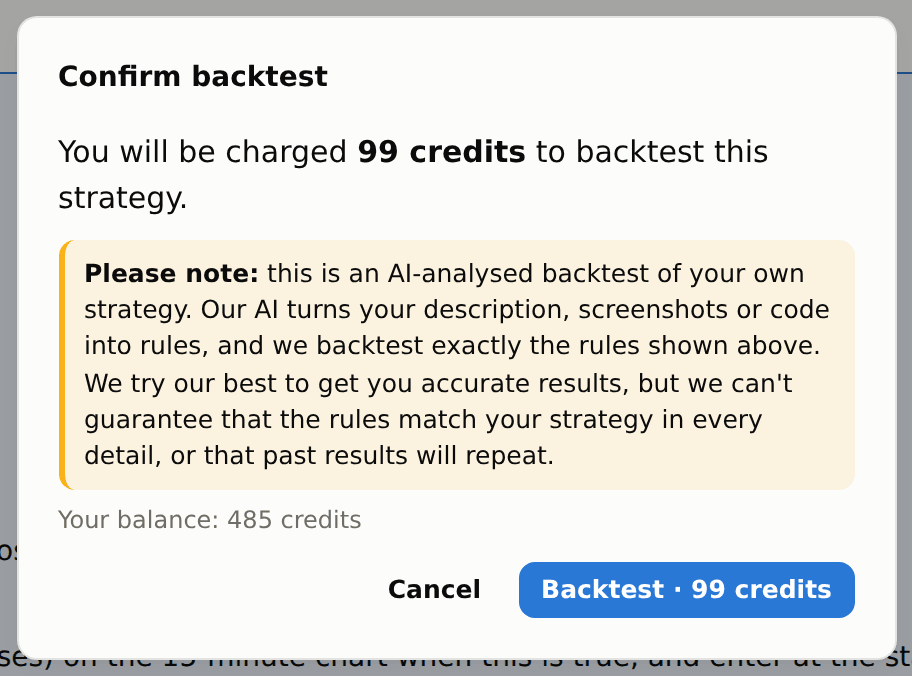
A new strategy costs 99 credits when you backtest it. A retest with other values or dates costs 49 credits. Reading and revising your strategy is free. You need at least 100 credits in your balance to start; that minimum is not deducted.
It tests anything a TradingView strategy can do: stop and limit entries, cancelling and placing orders again, partial exits, trailing stops, several entries in the same direction, counters such as at most 2 trades a day, and values from a higher timeframe. Every order is filled on real 1-minute prices. Example: NIFTY's 09:30 candle closes with a high of 24,180 and your buy stop is high + 10 = 24,190; it fills in the first minute the price reaches 24,190. If a stop loss and a target are both touched in the same minute, the stop loss is taken. That is why results can differ a little from TradingView, which guesses the order of prices inside a candle.
We test on NIFTY, BANKNIFTY and SENSEX prices from January 2023. Profit is index points × the lot size, or the option you choose in Step 1. Strategies that need stock prices, volume, fixed option strikes or several option legs at once cannot be tested; the AI says so in plain words and nothing is charged.
Step 1 — Define the scope for the AI
#Choose the index, the dates, and whether each trade is made on the index or in an option. For options choose buy or sell, the strike (ATM, or a number of strikes in or out of the money) and weekly or monthly expiry. Example: buy ATM weekly options with NIFTY at 24,250 — a long signal buys the 24250 CE and a short signal buys the 24250 PE. Your entries and exits still follow the index; the option's own price gives the profit.
The timeframe, the trading hours and the square-off time come from your strategy itself. If your code does not name a timeframe, the one you choose here is used.
Step 2 — Explain the strategy to the AI
#Paste your code is the default, with Pine Script, Python, JSON and Other. Paste the source or upload a file. Our AI only reads your code; it is never run.
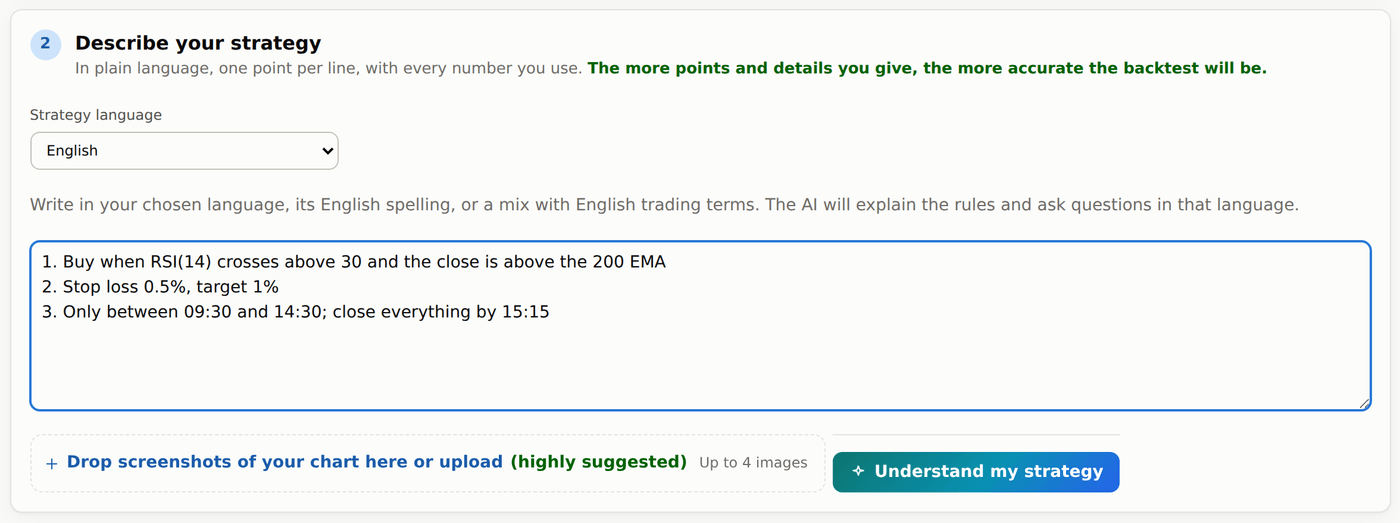
Switch to Describe your strategy, choose Strategy language, then write one rule per line and add up to four screenshots. English is included and selected by default. You can also choose any of India’s 22 scheduled languages (23 choices in total). You can use native script, English spelling or mixed English trading terms. The AI explains the rules and asks questions in your chosen language. Give the numbers: indicator lengths, levels, stop loss, target and times.
Press Understand my strategy. If you paste an indicator — it draws signals but places no orders — the AI says so and asks which of its signals should buy, sell and exit.
Step 3 — Confirm the AI's reading and get the results
#You see your strategy in plain words, and under Checked in the code what our system read from the AI's script itself: the timeframe, the order types, the indicators and every input value. We assumed lists each default the AI chose. Compare them with your strategy before you pay.
If something is unclear, the AI asks numbered questions, each with its own answer box or Yes / No buttons, and an Anything else? box at the end. When the strategy can already run, answering is optional.
When it looks right, press Looks right — backtest it and confirm the price. The run happens in the background and the results open by themselves: trades, charts, month by month figures and the robustness tests. A test that cannot apply to your strategy shows the reason, never a pass.
On the results page, Edit & re-test changes your strategy's input values and dates for 49 credits. To change the rules themselves, open it in the Backtester again and describe the change. Changing the indicators it uses needs a new strategy.
A run that fails returns its credits. A result with no trades means your rules never all held at the same time on those dates; the page says so.
Use Backtester in ChatGPT or Claude
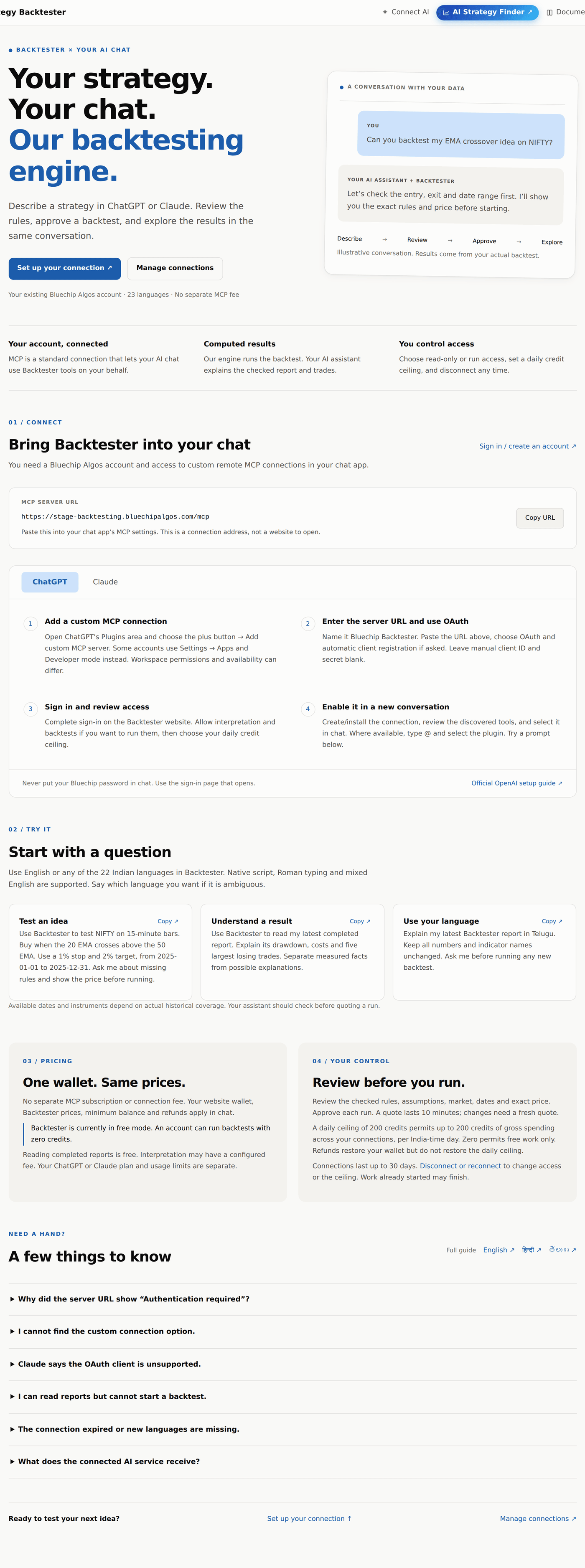
#The Backtester MCP connection lets ChatGPT or Claude send your own strategy to our backtesting engine and read the results. MCP is the connection between the chat app and our service. This feature is for backtesting; it does not discover strategies or place live trades.
You can type in English or any of the 22 Indian languages offered in the website’s Strategy language list. Chat has no dropdown: use your own language or say which language you want, for example Explain this in Telugu. Native script, Roman typing and mixed English trading terms are accepted. If the language is unclear, the chat assistant should ask. Your original words reach the same Backtester model directly, and the chosen language stays with the draft through questions and revisions. Drafts, quotes and reports tell the chat assistant which language to use. It should explain any English checked facts or errors in that language while keeping numbers, indicator names, code and computed results unchanged. There is no extra translation service or translation charge.
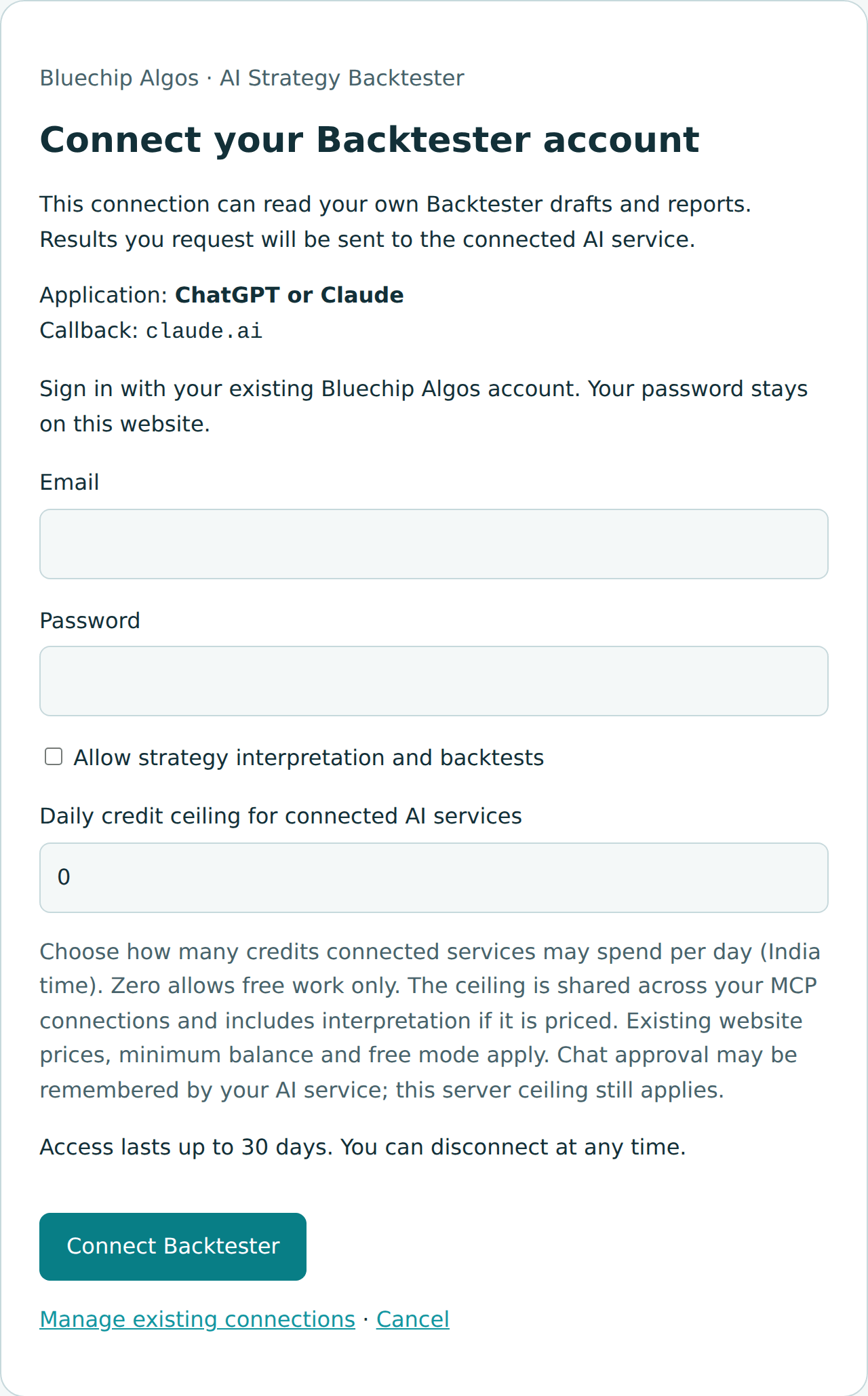
On the Backtester, open Connect MCP. Copy the server URL shown on Connected AI services into your chat app’s custom MCP connection settings and choose OAuth sign-in. If asked, choose automatic client registration and leave the client ID and secret blank. Your chat app must support custom remote MCP connections; account and workspace restrictions can apply. Sign in on our website with your existing Bluechip Algos account. Never paste your password into chat.
Choose read-only access, or allow strategy interpretation and backtests. For permission to run, set a daily credit ceiling. For example, a ceiling of 200 credits allows connected services to spend up to 200 credits that day, shared across MCP connections, using India time. Zero allows free work only. Disconnect a connection on Connected AI services whenever you want; to change its ceiling, disconnect and reconnect.
Ask in your preferred language, for example: “Test a Nifty strategy that buys when the 20 EMA crosses above the 50 EMA, with a 1% stop and 2% target, from 2025-01-01 to 2025-12-31.” The Backtester reads it, returns its checked understanding and asks for anything essential that is missing. Review the rules, assumptions, market, dates and exact price before approving a run in chat. A quote expires after 10 minutes; changes need a fresh quote.
The website and chat use the same wallet, Backtester prices, minimum balance, refunds and free-mode settings. There is no separate MCP subscription or connection fee. Reading completed reports is free; new or revised backtests use the price shown. Interpretation can have its own price if configured. Your ChatGPT or Claude plan and its usage limits are separate. Buy credits on our website; the connection does not sell them.
Ask follow-up questions about drawdowns, costs or losing trades, or compare completed runs. Reports also open on the website. A failed run returns wallet credits; for safety, its original charge still counts toward that day’s MCP ceiling. Your strategy and requested results are shared with the connected AI service. Code text and strategy descriptions are supported first; screenshots, raw data downloads, alerts and live orders are not included. Long runs may need another status check; a chat response is not a promise of background notifications.
Connect step by step
#Start with Connect MCP on Backtester. It opens the MCP introduction page: a browser page with a copyable server URL, separate ChatGPT and Claude instructions, example prompts and links to this guide. Manage connections opens account sign-in and your connected services. The introduction page does not need sign-in; using your drafts or running a backtest does.
For ChatGPT, open its Plugins area, choose the plus button and Add custom MCP server. Some accounts show this under Settings → Apps with Developer mode instead. Add the Backtester server URL, choose OAuth and automatic client registration if offered, and complete website sign-in. Create or install the connection, review its tools, then select it in a new chat. If available, type @ and choose it. Menu labels and access depend on your account and workspace. Official OpenAI setup guide.
For Claude, open Customize → Connectors, then + Add → Add custom connector. Some versions put Connectors in Settings. Enter the server URL, select Sign in now and set OAuth client to Register automatically. Leave manual credentials and custom request headers empty. This release does not support Claude’s published identity option. Complete website sign-in, finish adding the connector, and enable it in your chat through + → Connectors. A team workspace may need its owner to add it first. Official Claude setup guide.
Sign in only on the Bluechip Algos website that opens. For new backtests, tick Allow strategy interpretation and backtests and choose a daily credit ceiling. For example, 200 permits up to 200 credits of gross spending per India-time day across your connections. A ceiling of 0 permits free work only. Choosing read-only lets the assistant read your existing reports but cannot create or revise a strategy.
You do not need a separate monthly Backtester subscription to use MCP. When Backtester free mode is on, a signed-in user can run with zero credits. When charging is on, the usual minimum balance and exact quoted charges apply; free mode is an administrator setting, not an option the chat assistant can bypass. Your chat app’s own plan, custom-connection access and usage limits are separate.
MCP errors and your first conversation
#If opening the server URL shows Authentication required or invalid_token, you have opened the connection endpoint directly. Paste that address into your chat app’s MCP settings and complete OAuth sign-in. In a normal browser, /mcp now leads to the introduction page. Protocol requests without a valid token still get an authentication error; that protects your account.
If the custom connection option is missing, check your chat app’s current official guide and workspace permissions. If Claude reports an unsupported OAuth client, choose Register automatically and add the connector again. If you can read reports but cannot run, check run permission, wallet balance and the daily ceiling on Manage connections. Disconnect and reconnect to change access or the ceiling.
Try this in chat: Use Backtester to test NIFTY on 15-minute bars. Buy when the 20 EMA crosses above the 50 EMA, use a 1% stop and 2% target, from 2025-01-01 to 2025-12-31. Ask me about missing rules and show the exact price before running. The assistant must check available history and clarify missing rules first. Dates in an example do not guarantee coverage.
After completion, ask Explain the drawdown, costs and five largest losing trades in my latest Backtester report. Separate measured facts from possible explanations. To change language, say Explain this in Telugu. A new or changed run needs a fresh quote and your approval; asking about a completed report does not start another computation.
If the connection expires, refresh its tools or reconnect and start a new chat. Access lasts up to 30 days and may end earlier after account changes or revocation. If a run is queued or running, ask for its status instead of submitting it again. Long runs may need a later status check; automatic background notifications are not promised.