Investing Tools
Investing Terminal: Getting Started
Buy delivery stocks, keep exits on every holding and run Finder investing strategies.
The pages
#Dashboard is the home page. It lists every stock the Terminal manages, in all your accounts, with its live price, its P&L and all its exits on the same row. Edit changes the exits and Exit sells it. Stocks sold in the last 90 days are listed underneath, so nothing seems to disappear. A Needs a look box at the top lists anything that needs you today.
Holdings shows what is really in each live demat, read from the broker. Strategies holds the AI Strategy Finder investing strategies you deployed. Orders lists today’s buys and sells with the reason for each; earlier orders are in Analytics and Logs. Analytics shows your booked profit over time, month by month, with a Share button for the profit graph. Logs records everything the Terminal did and why, and Settings holds your defaults.
Before you start
#The Terminal is for delivery (CNC) investing in NSE and BSE stocks and ETFs. Intraday and option trading belong in the trading tools.
Buying needs a paid Investing Terminal subscription or Platinum membership. Trial members cannot buy, but anything already held keeps its exits. Each live account needs its broker login for the day and enough funds.
Buy a stock
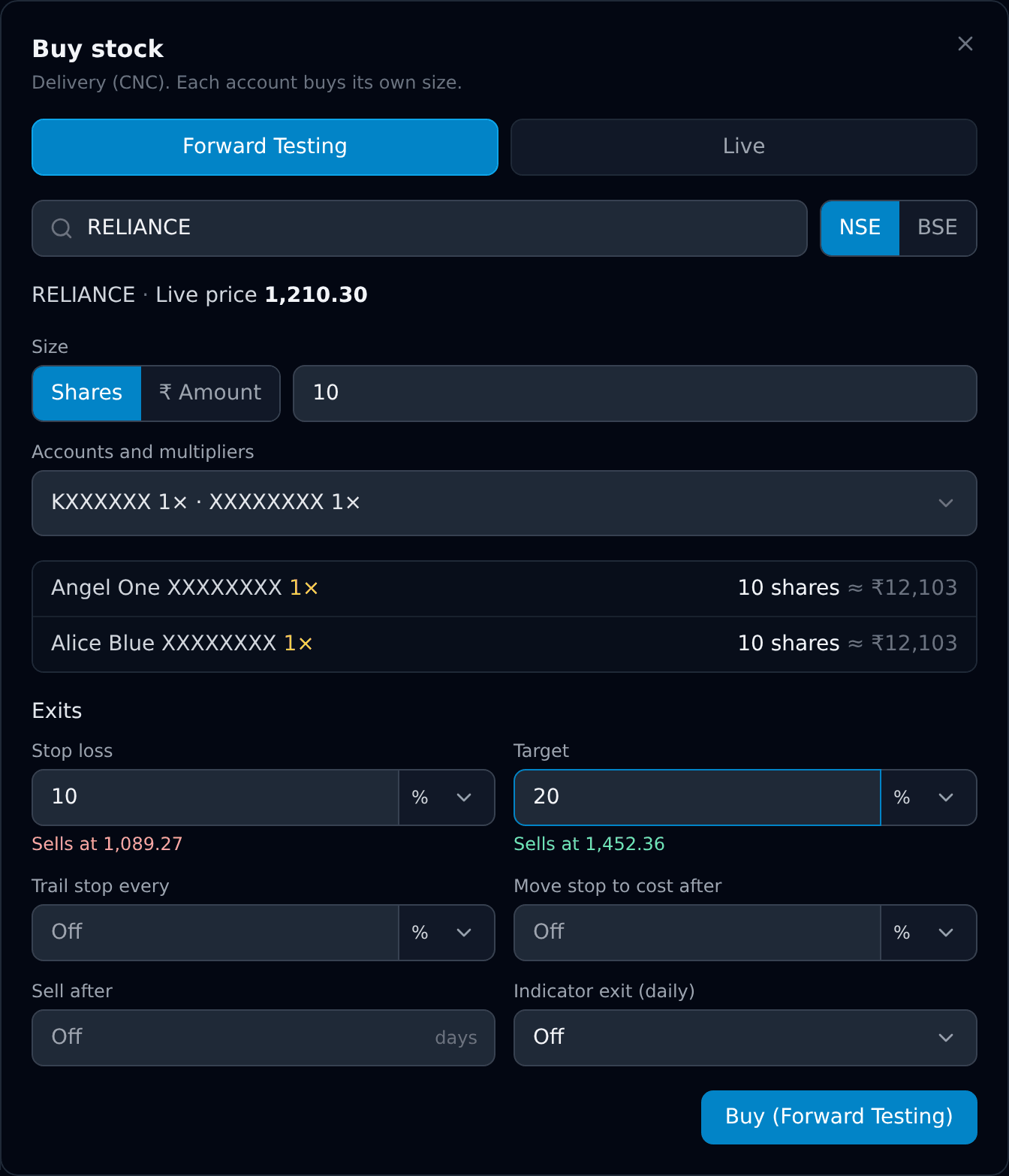
#On Dashboard press Buy stock. Choose Forward Testing or Live. Search the stock, and pick NSE or BSE. Enter a number of shares, or switch to ₹ Amount and enter rupees.
Open the account list and tick each account to buy in. Beside each ticked account is its multiplier; the list under it shows the shares each account will actually buy. Set the exits, then press Buy. There is no capital to allocate for a manual buy: the broker’s own funds are the limit.
The order is a market order. If one account’s broker refuses it, the message for that account is shown and the others are not affected.
Exits on every holding
#Each holding can have a stop loss, a target, a trailing stop, move-stop-to-cost, a holding period in trading days, and a daily indicator exit. Leave a box empty to keep that exit off. The dialog shows the actual prices as you type.
For stocks you buy yourself or import, choose the unit beside each box: stop loss and target in %, points (₹ per share) or the price itself, such as a stop loss at ₹120; move-stop-to-cost in %, points or a price; trailing in % or points. Strategies from AI Strategy Finder keep % exits, the way they were backtested.
Example: buy at Rs 100 with a stop loss of 10% and trailing every 5%. The stop starts at Rs 90. Price reaches Rs 105 → stop moves to Rs 95. Price reaches Rs 110 → stop moves to Rs 100. With move-stop-to-cost after 5%, the stop goes to Rs 100 as soon as price reaches Rs 105.
“Sell after 20 days” counts trading days including the buy day, skipping weekends and holidays. That sell goes out at 15:14 for stocks in the closing auction list and at 15:29 for the rest. A daily indicator exit is checked on completed days and acts at the next morning’s open.
To change a holding’s exits, press Edit on its row. The stop and target are worked out again from the buy price.
Import and exit shares you already own
#Holdings reads each live account’s demat when you open it or press Refresh. A stock the Terminal already manages shows “Protected”. A stock a Rebalancer basket holds shows that too. Qty shows the total shares the broker reports. If fewer are sellable, the row says how many; only those shares can be imported or exited. For example, 1 held and 0 sellable stays visible, but has no Exit button.
To bring stocks you already hold into the Terminal, press Import next to Buy stock on Dashboard. It lists every stock in your demats that the Terminal does not manage yet; tick the ones you want, or Select all, and press Import. Nothing is bought or sold, and no exits are set: the stocks appear on Dashboard, and you add exits with Edit when you want them.
Every stock has an Exit button, whoever bought it. It sells at market: shares the Terminal does not manage go first, then the oldest Terminal holding. Shares in a Rebalancer basket are never sold from here.
Run a Finder investing strategy
#In AI Strategy Finder, press Deploy on an investing strategy you bought, or paste its ID on the Strategies page. Choose Forward Testing or Live, the capital per account and the accounts. Each account’s capital is that amount × its multiplier, and each account has its own cash.
You can tick stocks the strategy holds today to buy them at the next entry, or leave them all unticked to wait for new signals. Deploying places no order. Press Resume when you are ready.
Strategy buys happen between 09:16 and 09:20. If data or the broker is not ready by then, that day’s buys are skipped and you are told. Pause buys stops new buys only; held stocks keep their exits. “Exits & capital” changes the exits for new buys and each account’s capital.
Several accounts
#Every buy and every strategy can use several accounts at once. Each account has its own multiplier, its own result and its own holdings. See Account multipliers for how sizes are worked out.
Dashboard and Orders have an account filter when you use more than one account.
Money, profit and broker charges
#A manual buy uses your broker funds directly. A deployed strategy uses the capital you gave it: buys reduce its cash and sells add to it. Changing that capital never moves money in or out of your broker account.
Profit in the Terminal is worked out from fill prices, before brokerage and taxes. Example: a strategy has Rs 1200, buys 10 shares at Rs 100 (Rs 1000) and sells all 10 at Rs 110 (Rs 1100). Its cash becomes Rs 1300 and its booked profit Rs 100 before charges. Your broker’s contract note shows the final amount, and charges can be large next to a small trade.
What the Terminal cannot promise?
#A stop loss or target is a market order sent when the live price crosses the level. In a gap or a fast market the fill can be worse than the level. Exits only run while the market is open.
A strategy’s backtest result is not a promise for the future, and live fills will not match backtest prices exactly.
Emergency order alerts
#Failed or incomplete buys and sells, unclear order outcomes and interrupted sell runs use the Telegram Emergency bucket. Link Telegram and keep Emergency alerts enabled. Normal fills and a stop-hit notice are separate from a failure alert.
An alert names the stock, portfolio or basket and broker account. Automatic resubmission stops; an unclear order may still be open at the broker. Check Orders and the broker order book before placing another order. Forward Testing never sends Telegram alerts.
An order from a Strategy Finder strategy or from a holding's own exit that fails is tried once more five minutes later, only after we check with your broker that nothing is still open or already filled. The first alert says when, and a second alert gives the result. Orders you place yourself are not tried again.
If something looks wrong
#A stock vanished from Dashboard: it was sold. Open “Sold in the last 90 days” under the table, or check Logs for the reason, such as Target hit. Also check the Live / Forward Testing and account filters at the top.
“Check broker” on a holding means the broker shows fewer shares than the Terminal manages, so its exits are paused. This happens if you sold it outside the Terminal. An order marked “Check broker” on Orders had an unclear answer from the broker; press Check with broker. The Terminal never sends such an order again on its own.
A buy was refused: the reason is shown on Orders, for example low funds or the broker being logged out. Fix it and buy again. If Resume says universe prices are incomplete, it names the closing date needed and some affected stocks. Wait for the market data update, then try Resume again. Existing exits remain active.
An exit refused with “CDSL/TPIN authorisation missing” means the broker needs today’s TPIN approval for those shares. Approve them in your broker app, or enable DDPI at your broker once so exits go through without it.