Discretionary Trading Tools
Trade Disc: Getting Started
The discretionary terminal for option traders who change a position after it is open — one click moves a leg to another strike.
A terminal for changing a position you already hold
#Trade Disc is discretionary, like Trade Scalper. Nothing is automated — you decide every entry and every exit. What it adds is adjustment: changing a position that is already open.
Most screens give you two actions, enter and exit. So when a sold call goes against you, moving it to a safer strike means closing one leg by hand and opening another — two orders, typed while the market keeps moving.
In Trade Disc that is one press. Click »» on the row and the platform closes the leg you hold and opens the same leg two strikes away, in about half a second, carrying the quantity and your levels across with it.
The same screen also changes the size of a leg, puts a stop loss and a target on it, and squares the whole book off on a rule you set once in the morning.
Which tool is this, and how is it different?
#Bluechip Algos has seven trading tools. Three place trades from a signal, three are for trading by hand, and one manages a stock portfolio. The quickest way to tell them apart is to ask what decides the entry.
- Trade Scalper — you decide, trade by trade. A discretionary tool for intraday traders and scalpers, with advanced controls built for option traders.
- Trade Disc (this one) — you decide, and then you adjust. A discretionary terminal for option traders who change a position after it is open — moving a leg to another strike, or changing its size, in one click.
- Trade Charts — you decide, on the chart. Options traded straight from the candles — entry, stop loss and target are lines you drag, with patterns and indicators drawn on the same chart.
- Trade Builder — indicators decide. RSI, moving averages, Supertrend, levels and candle patterns, worked out inside the platform on official candles. It analyses the index and places the order in options.
- Trade Bots — the clock decides. You give it times — enter at 09:20, exit at 15:10, on these weekdays. Straddles and strangles built around a schedule rather than an indicator.
- Trade Bridge — somebody else decides. Your signal comes from a third party such as TradingView. You configure what to trade here in Trade Apps, and the order is executed in your broker terminal.
- Equity Rebalancer — your stock list decides, on your schedule. You hold a fixed number of stocks in equal amounts and change the list every week or month. It works out what to sell and buy so every stock is even again, and buys shares for delivery rather than trading intraday.
Who this suits, and who it does not?
#It suits option traders who manage a position after it is open — rolling a sold call away from the market, adding to a leg that is working, taking half off, or repairing one side of a spread.
It suits you if you hold more than one leg at a time and think in strikes rather than in single trades.
It does not suit you if you go in and out of one leg at a time and want the fastest possible ticket. Trade Scalper is built for exactly that and stays the quicker screen.
It does not suit a beginner. Every button here moves real money on one press — a strike shift has no confirmation step, on purpose, because the whole point is speed.
What you need before you start?
#Four things, and the third one catches people out.
- An active subscription for Trade Disc and at least one connected broker account.
- The accounts you want to trade ticked in Configuration. Trade Disc shows, exits and adjusts only the accounts you picked there.
- A glance at the mode switch at the top left. Forward Testing and Live look the same apart from the colour; only that switch decides whether real money moves.
- An understanding of options. This screen assumes you already know what selling a call at a strike does to you.
What is on the screen?
#Everything sits on one page on purpose. A trader adjusting a live position should never have to open a second screen to do it.
On a phone the same panels stack in the same order, top to bottom, and the page scrolls.
- Down the left — the option chain, centred on the strike nearest the market. Every strike has a B and an S button on each side.
- Top right — Entries. The legs you have picked but not yet sent. Nothing here has reached your broker.
- Middle right — Adjustments. One row per open leg, with the buttons that change it. This is the app.
- Bottom left of that column — Live Positions. The day’s contracts the way a broker shows them, one row per contract per account.
- Bottom right — Global Settings. The rules that watch the whole book: MTM exits, an underlying level, lock and trail, an auto exit time, and the Kill Switch.
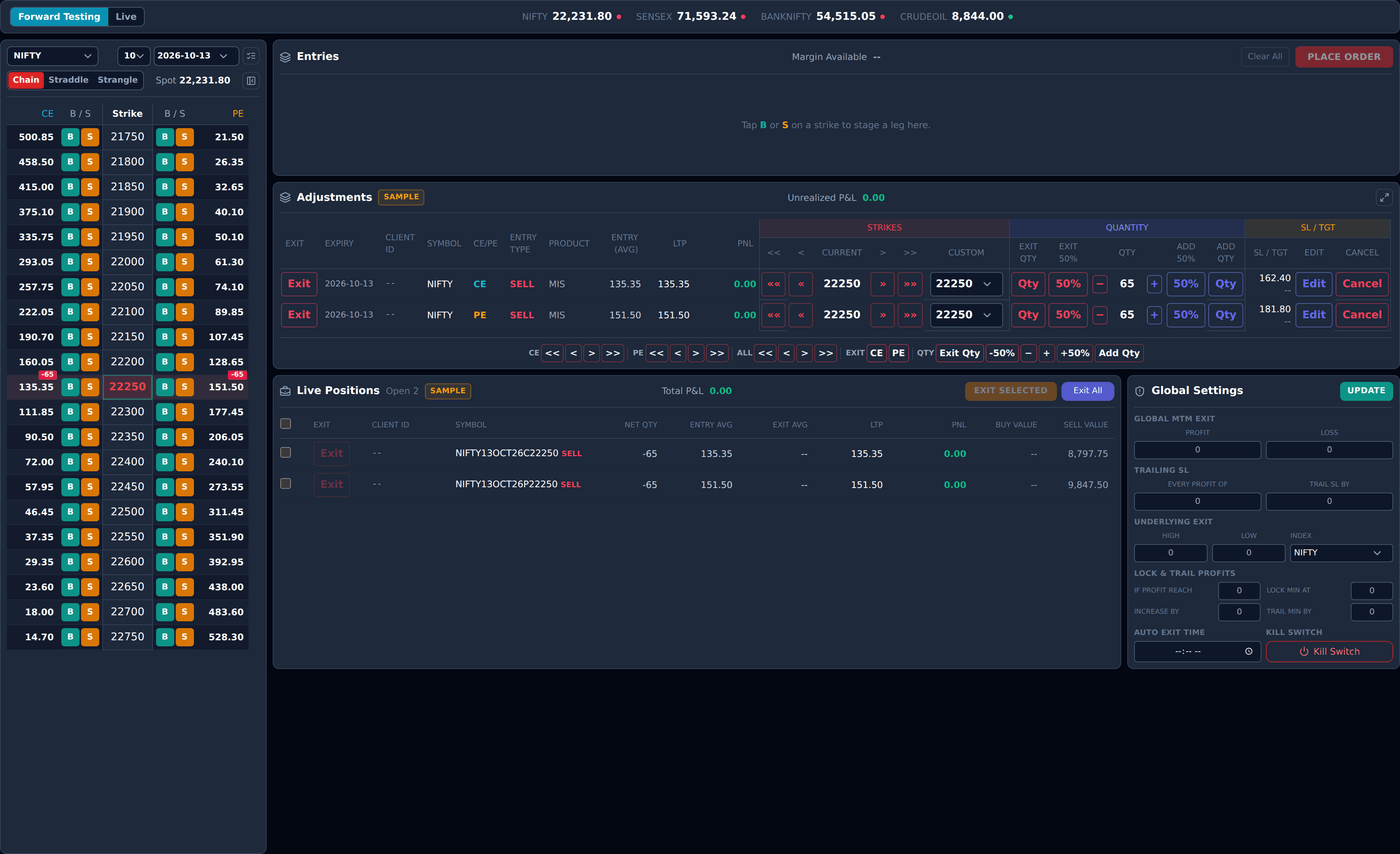
The three numbers, and where each one sits
#There is no profit and loss figure in the top corner of Trade Disc. Each number sits in the title row of the panel it describes, so you read it beside the rows it came from.
They are three different questions, which is why they are in three places.
- Margin Available, over Entries — the funds you have across every connected account, above the panel where you decide what to spend them on.
- Unrealized P&L, over Adjustments — what the legs that are still open are worth right now, above the panel that changes them.
- Total P&L, over Live Positions — booked plus unrealized, across exactly the rows on that panel, so the figure and the PNL column always agree.
What actually happens when you shift a strike?
#This is worth knowing exactly, because it is the one action on the screen that does two things instead of one.
In order:
- It works out the target strike by walking the real strike ladder on the chain, one listed strike at a time. It never adds 50 to a number — a ladder with a gap in it would otherwise send the leg to a strike that does not exist.
- It sends the exit for the leg you hold.
- It waits for that exit to fill — not for the broker to acknowledge it, for the fill itself.
- It then places the same leg on the new strike: same side, same quantity. A stop loss set as a percentage is worked out again from the new premium.
What happens when it does not go through?
#Every order Trade Disc sends is tried once. There is no retry anywhere in the platform, and that is deliberate — a retry in a fast market fills you at a price you never saw.
So a shift has exactly three ways to end badly, and each one leaves you somewhere you can see:
- The exit does not fill, or comes back cancelled → nothing else is sent. You still hold the original leg, unchanged.
- The exit fills only partly → nothing is re-entered. What is left is a smaller position on the old strike.
- The exit fills and the new order is rejected → you are flat, the rejected row is on screen and an alert goes out. This is the case to keep margin free for.
- While a shift is running, that row reads
Rolling → 24350so you can see where it is going.
A worked example, in rupees
#NIFTY is at 24,250. You sell one lot of the 24,250 CE at Rs 100. A NIFTY lot is 75, so you have taken in Rs 7,500.
NIFTY moves up to 24,330 and your 24,250 CE is now Rs 140. You are down (140 − 100) × 75 = Rs 3,000.
You press »» on that row — two strikes up. Trade Disc buys the 24,250 CE back at Rs 140, booking the Rs 3,000, and sells the 24,350 CE at Rs 95, taking in Rs 7,125.
None of that is a recommendation, and the platform has no view on whether rolling was the right thing to do. The point is only that it was one press instead of two orders typed by hand.
Forward Testing and Live
#Forward Testing is the platform’s word for paper trading, and it works the same way in every tool. The screen behaves exactly as it does in Live — legs open, prices move, shifts run, stop losses fire — but nothing is sent to your broker and no money moves.
Use it to learn where the buttons are. A strike shift is a two-order sequence and it is worth having done a few before you do one with money on it.
Live is filled red. That colour is the warning, so the label does not need to shout. Check it before your first click of the day.
What it cannot do?
#Said plainly, so nothing here is a surprise later.
- It cannot trade while you are away. Nothing is placed unless you press something. Global Settings can only close positions, never open one.
- It cannot tell you what to trade. No tips, no calls, no view on the market, and no opinion on whether a strike should be rolled.
- It cannot undo a press. There is no confirmation on a shift or an exit; check the row before you click.
- It cannot change a pending entry. An order that is placed and not yet filled can only be cancelled and placed again.
- It cannot tell you the margin a position will need before you place it. It shows the funds you have; your broker decides the requirement.
When something looks wrong
#In the order worth checking.
- A shift button does nothing. It only works on an open leg with a live price. A row still waiting to fill shows a
Pendingtag, and the only live button on it is Cancel. - The Custom strike list is greyed out. That leg is on a different expiry from the chain on screen. Switch the chain to that expiry, or use
«and», which walk the leg’s own ladder and stay available. - Everything closed on its own. One of your Global Settings rules squared the book off and emptied itself. Nothing is paused — put a value back in to protect the next trade, or leave it empty. See When a rule fires.
- The book looks empty but you hold positions. Open Configuration: Trade Disc shows only the broker accounts ticked there.
- Orders are refused. Check the mode switch, the broker connection in Settings, and that at least one account is ticked in Configuration.