Start Here
Free Trial
Create a 7-day trial account, add broker client IDs, and understand the welcome email.
What the free trial is?
#The Free Trial page creates a 7-day trial account. The page shows the trial end date before signup.
A trial account is a real platform account. Use your own name, email, phone number, password, and broker client IDs. Do not enter another person’s broker details.
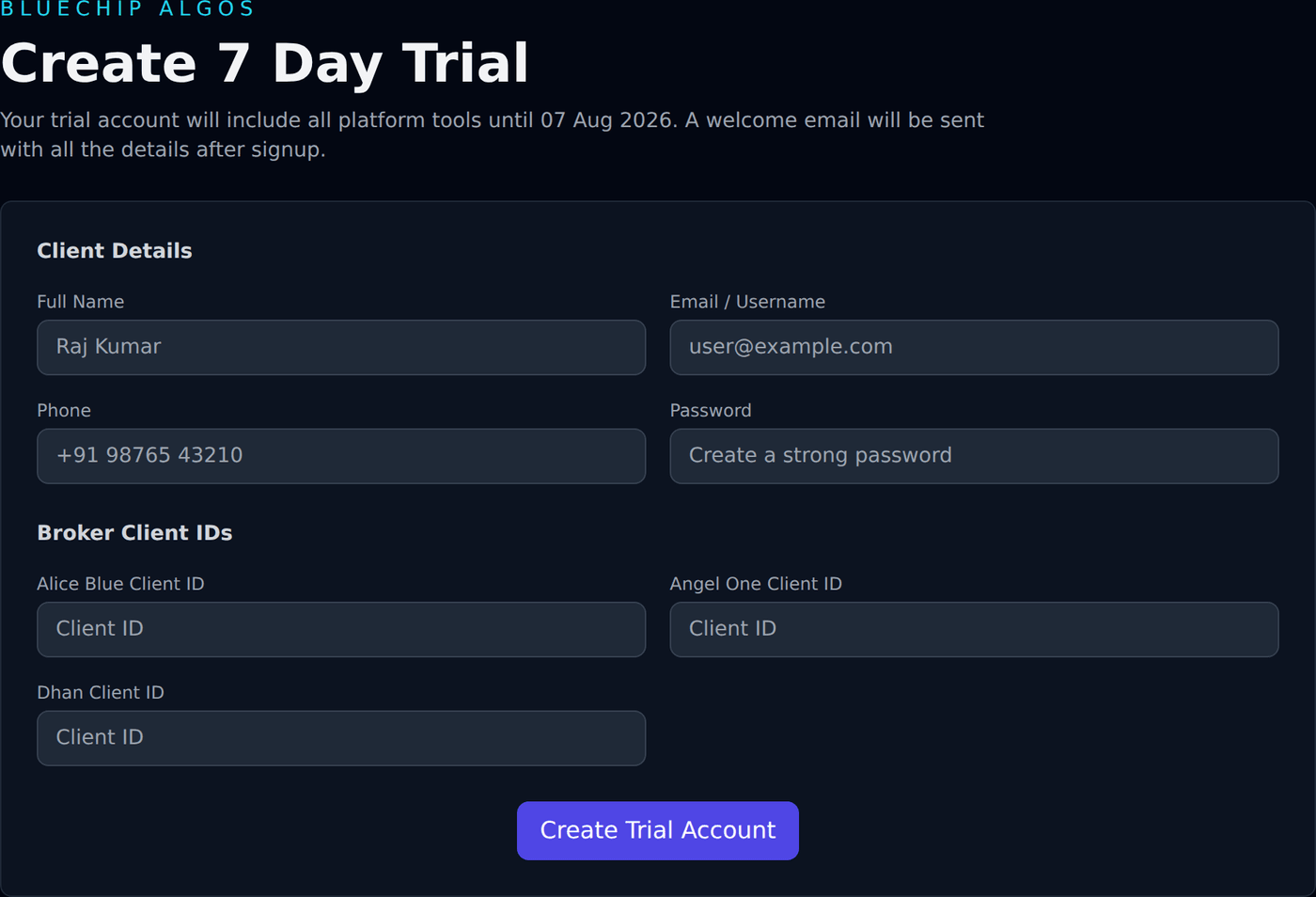
Full Name
#Enter your real name, for example Raj Kumar.
The platform normalizes the name before saving. This name may appear in emails and support records.
Email / Username
#Email is also your platform username.
Use an active email inbox because the welcome email is sent there. If you mistype the email, you may not receive the trial details.
Phone
#Enter your phone number in a format you can be contacted on.
Phone number is checked for duplicate usage. If the same phone is already used by another active account, signup can fail.
Password
#Create the platform login password here.
Password must have at least 8 characters with uppercase, lowercase, number, and special character. Spaces are not allowed. You will use this same password on the Login page.
Broker Client IDs
#The trial form shows a client ID box for each broker the platform currently supports.
Enter at least one broker client ID. If all broker client ID fields are empty, the form shows: At least one broker client ID is required.
Duplicate checks
#Before creating the trial, the backend checks email, phone, and broker client IDs.
If the email, phone, or broker client ID is already assigned to another active account, trial creation can fail. This protects users from accidentally linking the same broker account to multiple users.
Broker ID safety
#Use the broker client ID exactly as it appears in your broker account.
Do not use a family member’s or friend’s broker client ID. Orders and broker connection must belong to the assigned user.
Success message
#After successful signup, the page shows Trial account created.
It also says a welcome email has been sent to your email address and that you can log in with the username and password entered in the trial form.
Welcome email
#The backend sends a Welcome to Bluechip Algos email after trial account creation.
The email includes username, the password entered during signup, enabled products, and subscription end date details. Check inbox, spam, and promotions folders if you do not see it.
Login after trial signup
#Open Login, enter the trial email and password, and sign in.
After login, open Trading Tools and choose the app you want to try.
Trial duration
#Trial duration is 7 days from signup, using the platform’s IST date calculation.
After the trial ends, subscriptions can become expired and live actions may be blocked until payment activation.
Trial live actions
#Trial accounts still follow normal safety checks.
Broker connection, strategy save, order placement, and runtime changes depend on subscription status, broker assignment, broker credentials, and broker connection.